
37 KiB
Using a reverse proxy or secure tunnel with Nextcloud AIO
Overview
Nextcloud AIO needs to be accessed over HTTPS. You have three options:
| Approach | Best for | Inbound Ports |
|---|---|---|
| Integrated (AIO's built-in HTTPS) | Simple setups with port 443 available | Yes (443) |
| External Reverse Proxy (Caddy, Nginx, Cloudflare Proxy, etc.) | Multiple services on one IP, or existing reverse proxy | Yes (443) |
| Secure Tunnel (Cloudflare Tunnel or Tailscale) | No port forwarding possible/desired | No |
Note
For a purely local setup, see the local instance documentation instead.
Integrated HTTPS (no reverse proxy needed)
AIO includes a built-in reverse proxy with automatic HTTPS. Use this if:
- You have a publicly reachable IP address (not behind carrier-grade NAT)
- Port
443/tcpis available for AIO's exclusive use
→ If this fits your needs, follow the standard AIO instructions and skip this document.
External reverse proxy
Use this when port 443 is already in use or you run multiple services on one IP. Your reverse proxy handles TLS termination and forwards plain HTTP to AIO's Apache container. AIO's built-in HTTPS is disabled in this mode.
Supported options: Apache, Caddy, Nginx, Traefik, HAProxy, NPM, and others.
Note
Cloudflare Tunnel vs Cloudflare Proxy are different:
- Cloudflare Tunnel — no inbound ports required; outbound-only connection.
- Cloudflare Proxy (orange cloud DNS) — still requires port 443 exposed on your server.
Note
AIO requires a dedicated hostname (e.g.
cloud.example.com). Subfolder paths likeexample.com/nextcloud/are not supported.
Secure tunnels (no port forwarding)
| Service | Access scope |
|---|---|
| Cloudflare Tunnel | Public Internet |
| Tailscale Serve | Your tailnet only (private) |
| Tailscale Funnel | Public Internet via Tailscale |
Tip
Due to Cloudflare Tunnel/Proxy limitations, Tailscale is generally recommended when possible.
- Private/personal use: Tailscale Serve
- Public access without port forwarding: Tailscale Funnel
Setup steps
Tip
Don't have a domain yet? We recommend Tailscale. Don't have a reverse proxy yet? We recommend Caddy.
- Configure your reverse proxy using one of the sample configs below.
- Start the AIO mastercontainer with
APACHE_PORTset. See startup command. - Validate your domain in the AIO interface at
https://<host-ip>:8080.
Optional steps:
- Restrict Apache to localhost: Step 3
- Add trusted proxy IPs: Step 5
- Get a valid cert for the AIO interface: Step 6
- Troubleshooting: Step 7
Important
If you need HTTPS between the reverse proxy and AIO (because they run on different servers), use either a local reverse proxy with self-signed certs on the AIO host, or a VPN tunnel between the two servers.
Note
The Apache container is created by the mastercontainer. You cannot provide custom Docker labels or environment variables to it.
1. Configure the reverse proxy
Adapting the sample configurations
In every sample config below:
- Replace
<your-nc-domain>with your Nextcloud domain. - Replace
11000with your chosenAPACHE_PORT. - Replace
localhost/127.0.0.1with the correct address based on your setup:
Reverse proxy on the same host (no container)
Use localhost:$APACHE_PORT as-is.
Reverse proxy in a Docker container on the same host
Choose one of these approaches:
- Host networking: Add
--network host(ornetwork_mode: host) to the reverse proxy container. Uselocalhost:$APACHE_PORT. - APACHE_ADDITIONAL_NETWORK: Set this env variable to attach AIO's Apache container to the reverse proxy's Docker network. Use
http://nextcloud-aio-apache:$APACHE_PORT. ⚠️ The network must exist before starting AIO. - Join
nextcloud-aionetwork: Add it as a secondary external network on the reverse proxy container. Usehttp://nextcloud-aio-apache:$APACHE_PORT.
Reverse proxy on a different server
Use the private IP of the AIO host: private.ip.address.of.aio.server:$APACHE_PORT.
To find the private IP on Linux: ip a | grep "scope global" | head -1 | awk '{print $2}' | sed 's|/.*||'
Apache
click here to expand
Disclaimer: This config may need adjustments. Improvements welcome!
Requires certbot certificates. Add as a new Apache site config:
<VirtualHost *:80>
    ServerName <your-nc-domain>

    RewriteEngine On
    RewriteCond %{HTTPS} off
    RewriteRule (.*) https://%{HTTP_HOST}%{REQUEST_URI}
    RewriteCond %{SERVER_NAME} =<your-nc-domain>
    RewriteRule ^ https://%{SERVER_NAME}%{REQUEST_URI} [END,NE,R=permanent]
</VirtualHost>

<VirtualHost *:443>
    ServerName <your-nc-domain>

    # Reverse proxy based on https://httpd.apache.org/docs/current/mod/mod_proxy_wstunnel.html
    RewriteEngine On
    ProxyPreserveHost On
    RequestHeader set X-Real-IP %{REMOTE_ADDR}s
    AllowEncodedSlashes NoDecode

    ProxyPass / http://localhost:11000/ nocanon
    ProxyPassReverse / http://localhost:11000/

    RewriteCond %{HTTP:Upgrade} websocket [NC]
    RewriteCond %{HTTP:Connection} upgrade [NC]
    RewriteCond %{THE_REQUEST} "^[a-zA-Z]+ /(.*) HTTP/\d+(\.\d+)?$"
    RewriteRule .? "ws://localhost:11000/%1" [P,L,UnsafeAllow3F]

    # Enable h2, h2c and http1.1
    Protocols h2 h2c http/1.1

    # Solves slow upload speeds caused by http2
    H2WindowSize 5242880

    # TLS
    SSLEngine               on
    SSLProtocol             -all +TLSv1.2 +TLSv1.3
    SSLCipherSuite          ECDHE-ECDSA-AES128-GCM-SHA256:ECDHE-RSA-AES128-GCM-SHA256:ECDHE-ECDSA-AES256-GCM-SHA384:ECDHE-RSA-AES256-GCM-SHA384:ECDHE-ECDSA-CHACHA20-POLY1305:ECDHE-RSA-CHACHA20-POLY1305:DHE-RSA-AES128-GCM-SHA256:DHE-RSA-AES256-GCM-SHA384:DHE-RSA-CHACHA20-POLY1305
    SSLHonorCipherOrder     off
    SSLSessionTickets       off

    # If running apache on a subdomain of a domain that already has a wildcard cert from certbot,
    # replace <your-nc-domain> below with just the root domain (e.g. example.com).
    SSLCertificateFile /etc/letsencrypt/live/<your-nc-domain>/fullchain.pem
    SSLCertificateKeyFile /etc/letsencrypt/live/<your-nc-domain>/privkey.pem

    # Disable HTTP TRACE method.
    TraceEnable off
    <Files ".ht*">
        Require all denied
    </Files>

    # Support big file uploads
    LimitRequestBody 0
    Timeout 86400
    ProxyTimeout 86400
</VirtualHost>
Enable required modules:
sudo a2enmod rewrite proxy proxy_http proxy_wstunnel ssl headers http2
Caddy (recommended)
click here to expand
Add to your Caddyfile:
https://<your-nc-domain>:443 {
    reverse_proxy localhost:11000
}
The Caddyfile (no extension) should be in the same directory as your compose.yaml.
For a more complete example, see this guide.
Caddy with ACME DNS-challenge
click here to expand
- Get a Caddy build with your DNS provider's module — see this guide.
- Add to your
Caddyfile:https://<your-nc-domain>:443 { reverse_proxy localhost:11000 tls { dns <provider> <key> } } - Add
--env SKIP_DOMAIN_VALIDATION=trueto the mastercontainerdocker runcommand (DNS challenge doesn't open a public port for domain validation).
Tip
For local network access, add the reverse proxy's internal IP as an A record, disable DNS rebind protection in your router, or use a local DNS server (e.g. Pi-hole) with a custom record. Alternatively, add the domain to
/etc/hostson each device.
OpenLiteSpeed
click here to expand
Citrix ADC VPX / Citrix Netscaler
click here to expand
Cloudflare Tunnel
click here to expand
Note
Review Cloudflare Tunnel/Proxy caveats before proceeding.
- Install Cloudflare Tunnel on the same machine as AIO and point it to
http://localhost:11000. - Add
--env SKIP_DOMAIN_VALIDATION=trueto the mastercontainerdocker runcommand. - Disable Cloudflare's Rocket Loader to prevent login issues.
For a more complete example, see this guide.
HAProxy
click here to expand
Disclaimer: This config may need adjustments. Improvements welcome!
global
    chroot                      /var/haproxy
    log                         /var/run/log audit debug
    lua-prepend-path            /tmp/haproxy/lua/?.lua
    ssl-default-bind-ciphers ECDHE-ECDSA-AES128-GCM-SHA256:ECDHE-RSA-AES128-GCM-SHA256:ECDHE-ECDSA-AES256-GCM-SHA384:ECDHE-RSA-AES256-GCM-SHA384:ECDHE-ECDSA-CHACHA20-POLY1305:ECDHE-RSA-CHACHA20-POLY1305:DHE-RSA-AES128-GCM-SHA256:DHE-RSA-AES256-GCM-SHA384:DHE-RSA-CHACHA20-POLY1305
    ssl-default-bind-ciphersuites TLS_AES_128_GCM_SHA256:TLS_AES_256_GCM_SHA384:TLS_CHACHA20_POLY1305_SHA256
    ssl-default-bind-options ssl-min-ver TLSv1.2 no-tls-tickets

    ssl-default-server-ciphers ECDHE-ECDSA-AES128-GCM-SHA256:ECDHE-RSA-AES128-GCM-SHA256:ECDHE-ECDSA-AES256-GCM-SHA384:ECDHE-RSA-AES256-GCM-SHA384:ECDHE-ECDSA-CHACHA20-POLY1305:ECDHE-RSA-CHACHA20-POLY1305:DHE-RSA-AES128-GCM-SHA256:DHE-RSA-AES256-GCM-SHA384:DHE-RSA-CHACHA20-POLY1305
    ssl-default-server-ciphersuites TLS_AES_128_GCM_SHA256:TLS_AES_256_GCM_SHA384:TLS_CHACHA20_POLY1305_SHA256
    ssl-default-server-options ssl-min-ver TLSv1.2 no-tls-tickets

defaults
    log     global
    option redispatch -1
    retries 3
    default-server init-addr last,libc

# Frontend: LetsEncrypt_443 ()
frontend LetsEncrypt_443
    bind 0.0.0.0:443 name 0.0.0.0:443 ssl crt-list /tmp/haproxy/ssl/605f6609f106d1.17683543.certlist
    mode http
    option http-keep-alive
    default_backend acme_challenge_backend
    option forwardfor
    # tuning options
    timeout client 30s

    # logging options
    # ACL: find_acme_challenge
    acl acl_605f6d4b6453d2.03059920 path_beg -i /.well-known/acme-challenge/
    # ACL: Nextcloud
    acl acl_60604e669c3ca4.13013327 hdr(host) -i <your-nc-domain>

    # ACTION: redirect_acme_challenges
    use_backend acme_challenge_backend if acl_605f6d4b6453d2.03059920
    # ACTION: Nextcloud
    use_backend Nextcloud if acl_60604e669c3ca4.13013327


# Frontend: LetsEncrypt_80 ()
frontend LetsEncrypt_80
    bind 0.0.0.0:80 name 0.0.0.0:80
    mode tcp
    default_backend acme_challenge_backend
    # tuning options
    timeout client 30s

    # logging options
    # ACL: find_acme_challenge
    acl acl_605f6d4b6453d2.03059920 path_beg -i /.well-known/acme-challenge/

    # ACTION: redirect_acme_challenges
    use_backend acme_challenge_backend if acl_605f6d4b6453d2.03059920

# Frontend (DISABLED): 1_HTTP_frontend ()

# Frontend (DISABLED): 1_HTTPS_frontend ()

# Frontend (DISABLED): 0_SNI_frontend ()

# Backend: acme_challenge_backend (Added by Let's Encrypt plugin)
backend acme_challenge_backend
    # health checking is DISABLED
    mode http
    balance source
    # stickiness
    stick-table type ip size 50k expire 30m
    stick on src
    # tuning options
    timeout connect 30s
    timeout server 30s
    http-reuse safe
    server acme_challenge_host 127.0.0.1:43580

# Backend: Nextcloud ()
backend Nextcloud
    mode http
    balance source
    server Nextcloud localhost:11000
Nginx, Freenginx, Openresty, Angie
click here to expand
For a more complete example, see this guide.
Check your Nginx version with nginx -v and adjust the version-specific lines accordingly.
map $http_upgrade $connection_upgrade {
    default upgrade;
    '' close;
}

server {
    listen 80;
    listen [::]:80;            # comment to disable IPv6

    if ($scheme = "http") {
        return 301 https://$host$request_uri;
    }
    if ($http_x_forwarded_proto = "http") {
        return 301 https://$host$request_uri;
    }

    listen 443 ssl http2;      # for nginx versions below v1.25.1
    listen [::]:443 ssl http2; # for nginx versions below v1.25.1 - comment to disable IPv6

    # listen 443 ssl;      # for nginx v1.25.1+
    # listen [::]:443 ssl; # for nginx v1.25.1+ - keep comment to disable IPv6
    # http2 on;            # uncomment to enable HTTP/2 - supported on nginx v1.25.1+

    # listen 443 quic reuseport;       # uncomment to enable HTTP/3 / QUIC - supported on nginx v1.25.0+ - please remove "reuseport" if there is already another quic listener on port 443 with enabled reuseport
    # listen [::]:443 quic reuseport;  # uncomment to enable HTTP/3 / QUIC - supported on nginx v1.25.0+ - please remove "reuseport" if there is already another quic listener on port 443 with enabled reuseport - keep comment to disable IPv6
    # http3 on;                                 # uncomment to enable HTTP/3 / QUIC - supported on nginx v1.25.0+
    # quic_gso on;                              # uncomment to enable HTTP/3 / QUIC - supported on nginx v1.25.0+
    # quic_retry on;                            # uncomment to enable HTTP/3 / QUIC - supported on nginx v1.25.0+
    # quic_bpf on;                              # improves  HTTP/3 / QUIC - supported on nginx v1.25.0+, if nginx runs as a docker container you need to give it privileged permission to use this option
    # add_header Alt-Svc 'h3=":443"; ma=86400'; # uncomment to enable HTTP/3 / QUIC - supported on nginx v1.25.0+

    proxy_buffering off;
    proxy_request_buffering off;

    client_max_body_size 0;
    client_body_buffer_size 512k;
    # http3_stream_buffer_size 512k; # uncomment to enable HTTP/3 / QUIC - supported on nginx v1.25.0+
    proxy_read_timeout 86400s;

    server_name <your-nc-domain>;

    location / {
        proxy_pass http://127.0.0.1:11000$request_uri;

        proxy_set_header X-Forwarded-For $proxy_add_x_forwarded_for;
        proxy_set_header X-Forwarded-Port $server_port;
        proxy_set_header X-Forwarded-Scheme $scheme;
        proxy_set_header X-Forwarded-Proto $scheme;
        proxy_set_header X-Real-IP $remote_addr;
        proxy_set_header Host $host;
        proxy_set_header Early-Data $ssl_early_data;

        # Websocket
        proxy_http_version 1.1;
        proxy_set_header Upgrade $http_upgrade;
        proxy_set_header Connection $connection_upgrade;
    }

    # If running nginx on a subdomain of a domain that already has a wildcard cert from certbot,
    # replace <your-nc-domain> below with just the root domain (e.g. example.com).
    ssl_certificate /etc/letsencrypt/live/<your-nc-domain>/fullchain.pem;   # managed by certbot on host machine
    ssl_certificate_key /etc/letsencrypt/live/<your-nc-domain>/privkey.pem; # managed by certbot on host machine

    ssl_dhparam /etc/dhparam; # curl -L https://ssl-config.mozilla.org/ffdhe2048.txt -o /etc/dhparam

    ssl_early_data on;
    ssl_session_timeout 1d;
    ssl_session_cache shared:SSL:10m;

    ssl_protocols TLSv1.2 TLSv1.3;
    ssl_ecdh_curve x25519:x448:secp521r1:secp384r1:secp256r1;

    ssl_prefer_server_ciphers on;
    ssl_conf_command Options PrioritizeChaCha;
    ssl_ciphers TLS_AES_256_GCM_SHA384:TLS_CHACHA20_POLY1305_SHA256:TLS_AES_128_GCM_SHA256:ECDHE-ECDSA-AES256-GCM-SHA384:ECDHE-ECDSA-CHACHA20-POLY1305:ECDHE-ECDSA-AES128-GCM-SHA256:ECDHE-RSA-AES256-GCM-SHA384:ECDHE-RSA-CHACHA20-POLY1305:ECDHE-RSA-AES128-GCM-SHA256;
}
NPMplus (Fork of Nginx-Proxy-Manager)
click here to expand
Note
This is not needed when running NPMplus as a community container.
Make sure PUID and PGID in the NPM compose.yaml are unset or set to 0. If you need to change them, add net.ipv4.ip_unprivileged_port_start=0 to /etc/sysctl.conf.
See these screenshots for a working config:
Nginx-Proxy-Manager (NPM)
click here to expand
For a more complete example, see this guide.
Make sure PUID and PGID in the NPM compose.yaml are unset or set to 0. If you need to change them, add net.ipv4.ip_unprivileged_port_start=0 to /etc/sysctl.conf.
See these screenshots for a working config:
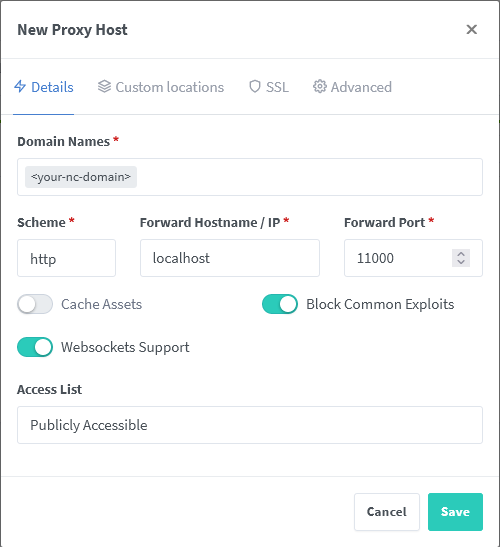
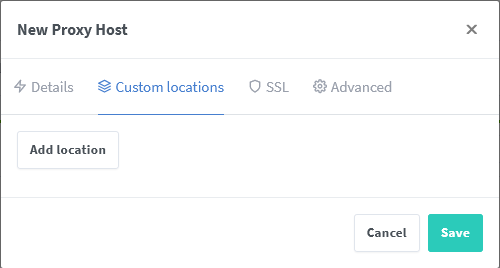
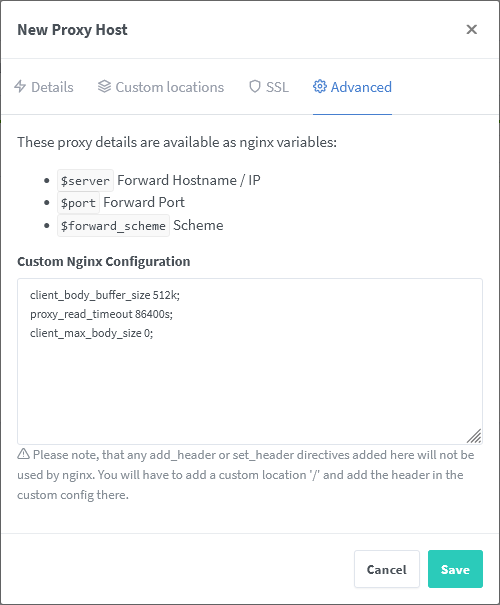
Also add the following advanced config:
client_body_buffer_size 512k;
proxy_read_timeout 86400s;
client_max_body_size 0;
Change <you>@<your-mail-provider-domain> to your email address.
Nginx-Proxy
click here to expand
This refers to the nginx-proxy project, not Nginx itself (see the Nginx section above for that).
Unfortunately nginx-proxy cannot be configured to work with AIO because it relies entirely on Docker container environment variables, which cannot be provided to AIO's Apache container.
We recommend switching to Caddy instead, or using manual-install.
Node.js with Express
click here to expand
Disclaimer: This config may need adjustments. Improvements welcome!
Uses the http-proxy npm package. WebSockets are handled separately.
const HttpProxy = require('http-proxy');
const express = require('express');
const http = require('http');

const app = express();
const proxy = HttpProxy.createProxyServer({
target: 'http://localhost:11000',
timeout: 1000 * 60 * 3,
proxyTimeout: 1000 * 60 * 3,
autoRewrite: true,
followRedirects: false,
});

function onProxyError(err, req, res, target) {
if (err.code === 'ECONNREFUSED') {
return res.status(503).send('Nextcloud server is currently not running. It may be down for temporary maintenance.');
}
else {
console.error(err);
return res.status(500).send(String(err));
}
}

app.use((req, res) => {
proxy.web(req, res, {}, onProxyError);
});

const httpServer = http.createServer(app);
httpServer.listen('80');

httpServer.on('upgrade', (req, socket, head) => {
proxy.ws(req, socket, head, {}, onProxyError);
});
If using the vhost package, proxy.web can be scoped to the vhost but proxy.ws must remain global:
const HttpProxy = require('http-proxy');
const express = require('express');
const http = require('http');

const myNextcloudApp = express();
const myOtherApp = express();
const vhost = express();

// Definitions for proxy and onProxyError unchanged. (see above)

myNextcloudApp.use((req, res) => {
proxy.web(req, res, {}, onProxyError);
});

vhost.use(vhostFunc('<your-nc-domain>', myNextcloudApp));

const httpServer = http.createServer(app);
httpServer.listen('80');

httpServer.on('upgrade', (req, socket, head) => {
proxy.ws(req, socket, head, {}, onProxyError);
});
Synology Reverse Proxy
click here to expand
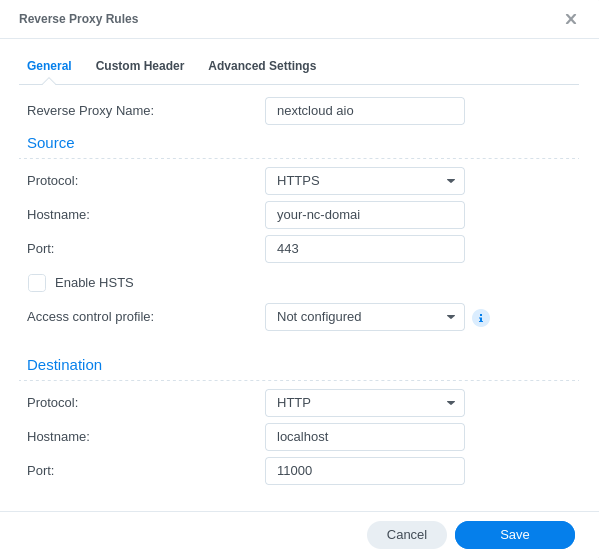
Disclaimer: This config may need adjustments. Improvements welcome!
See these screenshots for a working config:
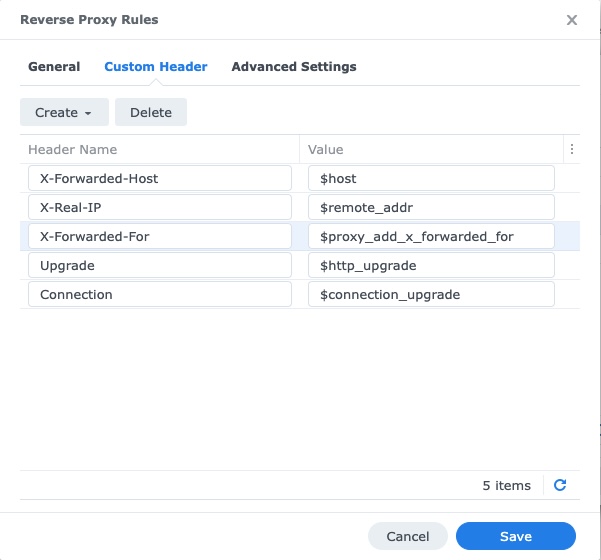
Tailscale (Serve)
click here to expand
Tailscale Serve exposes your Nextcloud privately to your tailnet only, using automatic HTTPS via MagicDNS.
For a full setup guide, see this guide by @Perseus333.
For public Internet access, use Tailscale Funnel instead.
Traefik 2
click here to expand
Disclaimer: This config may need adjustments. Improvements welcome!
Note
Docker labels won't work. Use dynamic file configuration instead.
For a more complete example, see this video.
-
In Traefik's static config, define a file provider:
# STATIC CONFIGURATION entryPoints: https: address: ":443" transport: respondingTimeouts: readTimeout: 24h # If you want to enable HTTP/3 support, uncomment the line below # http3: {} certificatesResolvers: letsencrypt: acme: storage: /letsencrypt/acme.json email: <your-email-address> tlschallenge: true providers: file: directory: "/path/to/dynamic/conf" watch: true -
In
/path/to/dynamic/conf/nextcloud.yml:http: routers: nextcloud: rule: "Host(`<your-nc-domain>`)" entrypoints: - "https" service: nextcloud middlewares: - nextcloud-chain tls: certresolver: "letsencrypt" services: nextcloud: loadBalancer: servers: - url: "http://localhost:11000" middlewares: nextcloud-secure-headers: headers: hostsProxyHeaders: - "X-Forwarded-Host" referrerPolicy: "same-origin" https-redirect: redirectscheme: scheme: https nextcloud-chain: chain: middlewares: # - ... (e.g. rate limiting middleware) - https-redirect - nextcloud-secure-headers
Traefik 3
click here to expand
Disclaimer: This config may need adjustments. Improvements welcome!
Note
Docker labels won't work. Use dynamic file configuration instead.
-
In Traefik's static config, define a file provider:
# STATIC CONFIGURATION entryPoints: https: address: ":443" transport: respondingTimeouts: readTimeout: 24h http: # Required for Nextcloud to correctly handle encoded URL characters (%2F, %3F and %25 in this case) in newer Traefik versions (v3.6.4+). encodedCharacters: allowEncodedSlash: true allowEncodedQuestionMark: true allowEncodedPercent: true # If you want to enable HTTP/3 support, uncomment the line below # http3: {} certificatesResolvers: letsencrypt: acme: storage: /letsencrypt/acme.json email: <your-email-address> tlschallenge: true providers: file: directory: "/path/to/dynamic/conf" watch: true -
In
/path/to/dynamic/conf/nextcloud.yml:http: routers: nextcloud: rule: "Host(`<your-nc-domain>`)" entrypoints: - "https" service: nextcloud middlewares: - nextcloud-chain tls: certresolver: "letsencrypt" services: nextcloud: loadBalancer: servers: - url: "http://localhost:11000" middlewares: nextcloud-secure-headers: headers: hostsProxyHeaders: - "X-Forwarded-Host" referrerPolicy: "same-origin" https-redirect: redirectscheme: scheme: https nextcloud-chain: chain: middlewares: # - ... (e.g. rate limiting middleware) - https-redirect - nextcloud-secure-headers
IIS with ARR and URL Rewrite
click here to expand
Disclaimer: This config may need adjustments. Improvements welcome!
Limitation: Maximum upload size of 4 GiB (set to 2 GiB in the example below).
Prerequisites
- Windows Server with IIS installed.
- Application Request Routing (ARR) and URL Rewrite modules installed.
- WebSocket Protocol feature enabled.
See IIS as a reverse proxy and the IIS Manager docs for setup guidance.
The config below assumes:
- A site with HTTPS and the desired hostname has been created.
- A server farm named
nc-server-farmpointing to the Nextcloud server has been created. - No global Rewrite Rules for
nc-server-farmexist.
Add the following web.config to the site root:
<?xml version="1.0" encoding="UTF-8"?>
<configuration>
  <system.web>
    <!-- Allow all urls -->
    <httpRuntime requestValidationMode="2.0" requestPathInvalidCharacters="" />
  </system.web>
  <system.webServer>
    <rewrite>
      <!-- useOriginalURLEncoding needs to be set to false, otherwise IIS will double encode urls causing all files with spaces or special characters to be inaccessible -->
      <rules useOriginalURLEncoding="false">
        <!-- Force https -->
        <rule name="Https" stopProcessing="true">
          <match url="(.*)" />
          <conditions>
            <add input="{HTTPS}" pattern="^OFF$" />
          </conditions>
          <action type="Redirect" url="https://{HTTP_HOST}/{REQUEST_URI}" appendQueryString="false" />
        </rule>
        <!-- Redirect to internal nextcloud server -->
        <rule name="To nextcloud" stopProcessing="true">
          <match url="(.*)" />
          <conditions>
            <add input="{HTTPS}" pattern="^ON$" />
          </conditions>
          <!-- Note that {UNENCODED_URL} already contains starting slash, so we must add it directly after the port number without additional slash -->
          <action type="Rewrite" url="http://nc-server-farm:11000{UNENCODED_URL}" appendQueryString="false" />
        </rule>
      </rules>
    </rewrite>
    <security>
      <!-- Increase upload limit to 2GiB -->
      <requestFiltering allowDoubleEscaping="true">
        <requestLimits maxAllowedContentLength="2147483648" />
      </requestFiltering>
    </security>
  </system.webServer>
</configuration>
Others
click here to expand
Config examples for other reverse proxies are currently not documented. Pull requests are welcome!
2. Startup command
After configuring your reverse proxy, start the mastercontainer with APACHE_PORT set:
# For Linux:
sudo docker run \
--init \
--sig-proxy=false \
--name nextcloud-aio-mastercontainer \
--restart always \
--publish 8080:8080 \
--env APACHE_PORT=11000 \
--env APACHE_IP_BINDING=0.0.0.0 \
--env APACHE_ADDITIONAL_NETWORK="" \
--env SKIP_DOMAIN_VALIDATION=false \
--volume nextcloud_aio_mastercontainer:/mnt/docker-aio-config \
--volume /var/run/docker.sock:/var/run/docker.sock:ro \
ghcr.io/nextcloud-releases/all-in-one:latest
Explanation of flags
--init— Prevents zombie processes.--sig-proxy=false— AllowsCtrl+Cto detach without stopping the container.--name nextcloud-aio-mastercontainer— Do not change. Required for mastercontainer updates.--restart always— Auto-starts with the Docker daemon.--publish 8080:8080— Exposes the AIO management interface. Change the host port if needed (e.g.--publish 8081:8080), but keep the container port at8080.--env APACHE_PORT=11000— Port the reverse proxy should forward to.--env APACHE_IP_BINDING=0.0.0.0— Limits which IPs can reach the Apache port. See step 3.--env APACHE_ADDITIONAL_NETWORK=""— Attaches AIO's Apache container to a Docker network (useful when the reverse proxy is a container on the same host). See adapting the configs.--env SKIP_DOMAIN_VALIDATION=false— Set totrueonly if you're sure everything is correctly configured. See how to skip domain validation.--volume nextcloud_aio_mastercontainer:/mnt/docker-aio-config— Do not change. Required for built-in backups.--volume /var/run/docker.sock:/var/run/docker.sock:ro— Grants Docker socket access. Adjust for Windows/macOS or Docker rootless (also setWATCHTOWER_DOCKER_SOCKET_PATH). See manual-install as an alternative.
Command for Windows
Install Docker Desktop (and enable IPv6 if needed), then run in Command Prompt:
docker run ^
--init ^
--sig-proxy=false ^
--name nextcloud-aio-mastercontainer ^
--restart always ^
--publish 8080:8080 ^
--env APACHE_PORT=11000 ^
--env APACHE_IP_BINDING=0.0.0.0 ^
--env APACHE_ADDITIONAL_NETWORK="" ^
--env SKIP_DOMAIN_VALIDATION=false ^
--volume nextcloud_aio_mastercontainer:/mnt/docker-aio-config ^
--volume //var/run/docker.sock:/var/run/docker.sock:ro ^
ghcr.io/nextcloud-releases/all-in-one:latest
For Synology DSM, see How to run AIO on Synology DSM.
For macOS, see How to run AIO on macOS.
You may also want to change the Nextcloud data directory location.
Docker Compose
Translate the docker run command into a Compose file. See compose.yaml for inspiration and this discussion for community examples.
3. Limit access to the Apache container
To restrict the Apache port to localhost only (recommended when the reverse proxy is on the same host):
--env APACHE_IP_BINDING=127.0.0.1
Note
Use
127.0.0.1only if your reverse proxy connects vialocalhost. If it connects via an IP address, use0.0.0.0.
4. Open the AIO interface
Access https://<host-ip>:8080, enter your domain, and validate it.
Important
Always use the IP address, not a domain name, to access port
8080. HSTS may block domain-based access later. This port uses a self-signed certificate — accept the browser warning.
After validating the domain, open/forward port 3478/TCP and 3478/UDP in your firewall/router if you use Nextcloud Talk.
5. Optional: Trusted proxy configuration
IP-based reverse proxy
If your reverse proxy connects to AIO using a non-localhost IP, add it as a trusted proxy:
sudo docker exec --user www-data -it nextcloud-aio-nextcloud php occ config:system:set trusted_proxies 2 --value=ip.address.of.proxy
Collabora WOPI allow list
If the reverse proxy connects to Nextcloud via an IP different from your public domain's IP (e.g. via Tailscale or Cloudflare Tunnel), also add the proxy IP to the WOPI allow list via:
Administration Settings → Administration → Office → Allow list for WOPI requests
For Cloudflare Tunnel, add all Cloudflare IP ranges to the WOPI allowlist.
External reverse proxies via VPN (e.g. Tailscale)
If your reverse proxy is outside your LAN and connecting via VPN, set APACHE_IP_BINDING=AIO.VPN.host.IP to restrict access to VPN traffic only.
6. Optional: Valid certificate for the AIO interface
Add this to your Caddyfile to serve the AIO interface with a valid certificate:
https://<your-nc-domain>:8443 {
    reverse_proxy https://localhost:8080 {
        header_up Host {host}
        transport http {
            tls_insecure_skip_verify
        }
    }
}
The AIO interface will then be available at https://<host-ip>:8443. You can also use a different subdomain with port 443.
7. Troubleshooting
If something isn't working:
- Follow this documentation from top to bottom exactly.
- Verify you used
--env APACHE_PORT=11000in thedocker runcommand. - Verify
APACHE_IP_BINDINGis correct — if in doubt, use0.0.0.0. - Verify all proxy target ports match
APACHE_PORT. - Adapt the sample config to your setup — see Adapting the sample configurations.
- Check that the mastercontainer has access to the Docker socket. Run
sudo docker logs nextcloud-aio-mastercontainerto inspect logs. - Test Apache port reachability from inside the reverse proxy container:
nc -z localhost 11000; echo $?(output0= success). - Check if you're behind CGNAT — if so, you cannot open ports. Use a Cloudflare Tunnel instead.
- If using Cloudflare, you may need to skip domain validation (
--env SKIP_DOMAIN_VALIDATION=true). - If using a host-network or host-based reverse proxy, ensure your firewall allows ports 80 and 443.
- Verify your public IP situation (IPv4 only, IPv6 only, or dual-stack). For IPv6-only setups, enable IPv6 in Docker and add an AAAA DNS record.
- Enable Hairpin NAT or set up a local DNS server for local access.
- As a last resort, reset from scratch: how to properly reset the instance.
- If all else fails, disable domain validation:
--env SKIP_DOMAIN_VALIDATION=true— only use this if you are certain everything is configured correctly. See how to skip domain validation.
8. Removing the reverse proxy
- Stop all running containers in the AIO interface.
- Stop and remove the mastercontainer:
sudo docker stop nextcloud-aio-mastercontainer sudo docker rm nextcloud-aio-mastercontainer - Remove the reverse proxy software and configuration (see step 1).
- Restart the mastercontainer using the standard run command, but add before the last line:
--env APACHE_IP_BINDING=0.0.0.0 \ --env APACHE_PORT=443 \ - Restart all other containers in the AIO interface.