mirror of
https://github.com/nextcloud/all-in-one.git
synced 2026-05-22 03:10:16 +00:00
Compare commits
47 Commits
| Author | SHA1 | Date | |
|---|---|---|---|

|
63a74beeab | ||
|
|
57adc3a137 | ||
|
|
0dd9177630 | ||
|
|
02ec273971 | ||
|
|
70c4223a29 | ||
|
|
79e53f0d00 | ||
|
|
cd6e0ed9d4 | ||
|
|
ac9f86a525 | ||
|
|
675b2025d2 | ||
|
|
8021c8119f | ||
|
|
a58185bb6e | ||
|
|
ce0ede2bcc | ||
|
|
a708102ca7 | ||
|
|
def0509bb3 | ||
|
|
3b2e4a22ae | ||
|
|
478aadf3fa | ||
|
|
443daa092f | ||
|
|
8425fa1b6d | ||
|
|
07d1b5e240 | ||
|
|
bdedc6ab24 | ||
|
|
dd1287469d | ||
|
|
2bf511a935 | ||
|
|
72140ddf36 | ||
|
|
e2ca219cf5 | ||
|
|
6e84405249 | ||
|
|
1a4e5ce3f4 | ||
|
|
5a7aa1cb1f | ||
|
|
45b031545a | ||
|
|
3ce14dc23c | ||
|
|
bc34ab31bc | ||
|
|
dba9980202 | ||
|
|
bd5301cd48 | ||
|
|
e4aff51ea5 | ||
|
|
84dbfc1ed3 | ||
|
|
750c61a8df | ||
|
|
11fdf29fdd | ||
|
|
cfe839f3f6 | ||
|
|
0224304dca | ||
|
|
482b279f3c | ||
|
|
f78620402e | ||
|
|
1b6a3142cd | ||
|
|
71549c49eb | ||
|
|
4db1b278b1 | ||
|
|
1ebb03aef7 | ||
|
|
97f59ac009 | ||
|
|
005ad34741 | ||
|
|
7cc922c18f |
@@ -1 +1 @@
|
||||
* @szaimen @LukasReschke @azul @juliushaertl
|
||||
* @szaimen @juliushaertl
|
||||
|
||||
@@ -1,7 +1,7 @@
|
||||
# Caddy is a requirement
|
||||
FROM caddy:2.5.1-alpine as caddy
|
||||
FROM caddy:2.5.2-alpine as caddy
|
||||
|
||||
FROM debian:bullseye-20220622-slim
|
||||
FROM debian:bullseye-20220711-slim
|
||||
|
||||
RUN mkdir -p /mnt/data; \
|
||||
chown www-data:www-data /mnt/data;
|
||||
|
||||
@@ -1,4 +1,4 @@
|
||||
FROM debian:bullseye-20220622-slim
|
||||
FROM debian:bullseye-20220711-slim
|
||||
|
||||
RUN set -ex; \
|
||||
\
|
||||
|
||||
@@ -1,5 +1,5 @@
|
||||
# From a file located probably somewhere here: https://github.com/CollaboraOnline/online/tree/master/docker
|
||||
FROM collabora/code:22.05.3.1.1
|
||||
FROM collabora/code:22.05.4.1.1
|
||||
|
||||
USER root
|
||||
|
||||
|
||||
@@ -5,7 +5,8 @@ RUN adduser -S www-data -G www-data
|
||||
RUN rm -rf /etc/lighttpd/lighttpd.conf
|
||||
COPY lighttpd.conf /etc/lighttpd/lighttpd.conf
|
||||
RUN chmod +r -R /etc/lighttpd && \
|
||||
chown www-data:www-data -R /var/www
|
||||
chown www-data:www-data -R /var/www && \
|
||||
chown www-data:www-data /etc/lighttpd/lighttpd.conf
|
||||
|
||||
COPY start.sh /
|
||||
RUN chmod +x /start.sh
|
||||
|
||||
@@ -13,4 +13,8 @@ mimetype.assign = (
|
||||
)
|
||||
|
||||
static-file.exclude-extensions = ( ".fcgi", ".php", ".rb", "~", ".inc" )
|
||||
index-file.names = ( "index.html" )
|
||||
index-file.names = ( "index.html" )
|
||||
|
||||
$SERVER["socket"] == "ipv6-placeholder" {
|
||||
server.document-root = "/var/www/domaincheck/"
|
||||
}
|
||||
|
||||
@@ -11,6 +11,9 @@ if [ -z "$APACHE_PORT" ]; then
|
||||
export APACHE_PORT="443"
|
||||
fi
|
||||
|
||||
CONF_FILE="$(sed "s|ipv6-placeholder|\[::\]:$APACHE_PORT|" /etc/lighttpd/lighttpd.conf)"
|
||||
echo "$CONF_FILE" > /etc/lighttpd/lighttpd.conf
|
||||
|
||||
# Check config file
|
||||
lighttpd -tt -f /etc/lighttpd/lighttpd.conf
|
||||
|
||||
|
||||
@@ -2,10 +2,10 @@
|
||||
FROM docker:20.10.17-dind-alpine3.16 as dind
|
||||
|
||||
# Caddy is a requirement
|
||||
FROM caddy:2.5.1-alpine as caddy
|
||||
FROM caddy:2.5.2-alpine as caddy
|
||||
|
||||
# From https://github.com/docker-library/php/blob/master/8.0/bullseye/apache/Dockerfile
|
||||
FROM php:8.0.20-apache-bullseye
|
||||
FROM php:8.0.21-apache-bullseye
|
||||
|
||||
EXPOSE 80
|
||||
EXPOSE 8080
|
||||
@@ -88,11 +88,13 @@ COPY start.sh /usr/bin/
|
||||
COPY backup-time-file-watcher.sh /
|
||||
COPY session-deduplicator.sh /
|
||||
COPY cron.sh /
|
||||
COPY daily-backup.sh /
|
||||
COPY supervisord.conf /
|
||||
RUN chmod +x /usr/bin/start.sh; \
|
||||
chmod +x /cron.sh; \
|
||||
chmod +x /session-deduplicator.sh; \
|
||||
chmod +x /backup-time-file-watcher.sh; \
|
||||
chmod +x /daily-backup.sh; \
|
||||
chmod a+r /Caddyfile
|
||||
|
||||
USER root
|
||||
|
||||
@@ -10,12 +10,12 @@ file_present() {
|
||||
if [ "$FILE_PRESENT" = 0 ]; then
|
||||
restart_process
|
||||
else
|
||||
if [ -n "$BACKUP_TIME" ] && [ "$(cat "/mnt/docker-aio-config/data/daily_backup_time")" != "$BACKUP_TIME" ]; then
|
||||
if [ -n "$BACKUP_TIME" ] && [ "$(head -1 "/mnt/docker-aio-config/data/daily_backup_time")" != "$BACKUP_TIME" ]; then
|
||||
restart_process
|
||||
fi
|
||||
fi
|
||||
FILE_PRESENT=1
|
||||
BACKUP_TIME="$(cat "/mnt/docker-aio-config/data/daily_backup_time")"
|
||||
BACKUP_TIME="$(head -1 "/mnt/docker-aio-config/data/daily_backup_time")"
|
||||
else
|
||||
if [ "$FILE_PRESENT" = 1 ]; then
|
||||
restart_process
|
||||
|
||||
@@ -3,18 +3,25 @@
|
||||
while true; do
|
||||
if [ -f "/mnt/docker-aio-config/data/daily_backup_time" ]; then
|
||||
set -x
|
||||
BACKUP_TIME="$(cat "/mnt/docker-aio-config/data/daily_backup_time")"
|
||||
DAILY_BACKUP=1
|
||||
BACKUP_TIME="$(head -1 "/mnt/docker-aio-config/data/daily_backup_time")"
|
||||
export BACKUP_TIME
|
||||
export DAILY_BACKUP=1
|
||||
if [ "$(sed -n '2p' "/mnt/docker-aio-config/data/daily_backup_time")" != 'automaticUpdatesAreNotEnabled' ]; then
|
||||
export AUTOMATIC_UPDATES=1
|
||||
else
|
||||
export AUTOMATIC_UPDATES=0
|
||||
export START_CONTAINERS=1
|
||||
fi
|
||||
set +x
|
||||
else
|
||||
BACKUP_TIME="04:00"
|
||||
DAILY_BACKUP=0
|
||||
export BACKUP_TIME="04:00"
|
||||
export DAILY_BACKUP=0
|
||||
fi
|
||||
|
||||
if [ -f "/mnt/docker-aio-config/data/daily_backup_running" ]; then
|
||||
LOCK_FILE_PRESENT=1
|
||||
export LOCK_FILE_PRESENT=1
|
||||
else
|
||||
LOCK_FILE_PRESENT=0
|
||||
export LOCK_FILE_PRESENT=0
|
||||
fi
|
||||
|
||||
# Allow to continue directly if e.g. the mastercontainer was updated. Otherwise wait for the next execution
|
||||
@@ -25,61 +32,7 @@ while true; do
|
||||
fi
|
||||
|
||||
if [ "$DAILY_BACKUP" = 1 ]; then
|
||||
echo "Daily backup has started"
|
||||
|
||||
# Delete all active sessions and create a lock file
|
||||
# But don't kick out the user if the mastercontainer was just updated since we block the interface either way with the lock file
|
||||
if [ "$LOCK_FILE_PRESENT" = 0 ]; then
|
||||
rm -f "/mnt/docker-aio-config/session/"*
|
||||
fi
|
||||
sudo -u www-data touch "/mnt/docker-aio-config/data/daily_backup_running"
|
||||
|
||||
# Check if apache is running/stopped, watchtower is stopped and backupcontainer is stopped
|
||||
APACHE_PORT="$(docker inspect nextcloud-aio-apache --format "{{.HostConfig.PortBindings}}" | grep -oP '[0-9]+' | head -1)"
|
||||
while docker ps --format "{{.Names}}" | grep -q "^nextcloud-aio-apache$" && ! nc -z nextcloud-aio-apache "$APACHE_PORT"; do
|
||||
echo "Waiting for apache to become available"
|
||||
sleep 30
|
||||
done
|
||||
while docker ps --format "{{.Names}}" | grep -q "^nextcloud-aio-watchtower$"; do
|
||||
echo "Waiting for watchtower to stop"
|
||||
sleep 30
|
||||
done
|
||||
while docker ps --format "{{.Names}}" | grep -q "^nextcloud-aio-borgbackup$"; do
|
||||
echo "Waiting for borgbackup to stop"
|
||||
sleep 30
|
||||
done
|
||||
|
||||
# Update the mastercontainer
|
||||
sudo -u www-data php /var/www/docker-aio/php/src/Cron/UpdateMastercontainer.php
|
||||
|
||||
# Wait for watchtower to stop
|
||||
if ! docker ps --format "{{.Names}}" | grep -q "^nextcloud-aio-watchtower$"; then
|
||||
echo "Something seems to be wrong: Watchtower should be started at this step."
|
||||
else
|
||||
while docker ps --format "{{.Names}}" | grep -q "^nextcloud-aio-watchtower$"; do
|
||||
echo "Waiting for watchtower to stop"
|
||||
sleep 30
|
||||
done
|
||||
fi
|
||||
|
||||
# Execute the backup itself and some related tasks
|
||||
sudo -u www-data php /var/www/docker-aio/php/src/Cron/DailyBackup.php
|
||||
|
||||
# Delete the lock file
|
||||
rm -f "/mnt/docker-aio-config/data/daily_backup_running"
|
||||
|
||||
# Wait for the nextcloud container to start and send if the backup was successful
|
||||
if ! docker ps --format "{{.Names}}" | grep -q "^nextcloud-aio-nextcloud$"; then
|
||||
echo "Something seems to be wrong: Nextcloud should be started at this step."
|
||||
else
|
||||
while docker ps --format "{{.Names}}" | grep -q "^nextcloud-aio-nextcloud$" && ! nc -z nextcloud-aio-nextcloud 9000; do
|
||||
echo "Waiting for the Nextcloud container to start"
|
||||
sleep 30
|
||||
done
|
||||
fi
|
||||
sudo -u www-data php /var/www/docker-aio/php/src/Cron/BackupNotification.php
|
||||
|
||||
echo "Daily backup has finished"
|
||||
bash /daily-backup.sh
|
||||
fi
|
||||
|
||||
# Make sure to delete the lock file always
|
||||
|
||||
77
Containers/mastercontainer/daily-backup.sh
Normal file
77
Containers/mastercontainer/daily-backup.sh
Normal file
@@ -0,0 +1,77 @@
|
||||
#!/bin/bash
|
||||
|
||||
echo "Daily backup has started"
|
||||
|
||||
# Delete all active sessions and create a lock file
|
||||
# But don't kick out the user if the mastercontainer was just updated since we block the interface either way with the lock file
|
||||
if [ "$LOCK_FILE_PRESENT" = 0 ]; then
|
||||
rm -f "/mnt/docker-aio-config/session/"*
|
||||
fi
|
||||
sudo -u www-data touch "/mnt/docker-aio-config/data/daily_backup_running"
|
||||
|
||||
# Check if apache is running/stopped, watchtower is stopped and backupcontainer is stopped
|
||||
APACHE_PORT="$(docker inspect nextcloud-aio-apache --format "{{.HostConfig.PortBindings}}" | grep -oP '[0-9]+' | head -1)"
|
||||
while docker ps --format "{{.Names}}" | grep -q "^nextcloud-aio-apache$" && ! nc -z nextcloud-aio-apache "$APACHE_PORT"; do
|
||||
echo "Waiting for apache to become available"
|
||||
sleep 30
|
||||
done
|
||||
while docker ps --format "{{.Names}}" | grep -q "^nextcloud-aio-watchtower$"; do
|
||||
echo "Waiting for watchtower to stop"
|
||||
sleep 30
|
||||
done
|
||||
while docker ps --format "{{.Names}}" | grep -q "^nextcloud-aio-borgbackup$"; do
|
||||
echo "Waiting for borgbackup to stop"
|
||||
sleep 30
|
||||
done
|
||||
|
||||
# Update the mastercontainer
|
||||
if [ "$AUTOMATIC_UPDATES" = 1 ]; then
|
||||
sudo -u www-data php /var/www/docker-aio/php/src/Cron/UpdateMastercontainer.php
|
||||
fi
|
||||
|
||||
# Wait for watchtower to stop
|
||||
if [ "$AUTOMATIC_UPDATES" = 1 ] && ! docker ps --format "{{.Names}}" | grep -q "^nextcloud-aio-watchtower$"; then
|
||||
echo "Something seems to be wrong: Watchtower should be started at this step."
|
||||
else
|
||||
while docker ps --format "{{.Names}}" | grep -q "^nextcloud-aio-watchtower$"; do
|
||||
echo "Waiting for watchtower to stop"
|
||||
sleep 30
|
||||
done
|
||||
fi
|
||||
|
||||
# Stop containers if required
|
||||
if [ "$DAILY_BACKUP" != 1 ] || [ "$STOP_CONTAINERS" = 1 ]; then
|
||||
sudo -u www-data php /var/www/docker-aio/php/src/Cron/StopContainers.php
|
||||
fi
|
||||
|
||||
# Execute the backup itself and some related tasks (also stops the containers)
|
||||
if [ "$DAILY_BACKUP" = 1 ]; then
|
||||
sudo -u www-data php /var/www/docker-aio/php/src/Cron/CreateBackup.php
|
||||
fi
|
||||
|
||||
# Start and/or update containers
|
||||
if [ "$AUTOMATIC_UPDATES" = 1 ]; then
|
||||
sudo -u www-data php /var/www/docker-aio/php/src/Cron/StartAndUpdateContainers.php
|
||||
else
|
||||
if [ "$START_CONTAINERS" = 1 ]; then
|
||||
sudo -u www-data php /var/www/docker-aio/php/src/Cron/StartContainers.php
|
||||
fi
|
||||
fi
|
||||
|
||||
# Delete the lock file
|
||||
rm -f "/mnt/docker-aio-config/data/daily_backup_running"
|
||||
|
||||
if [ "$DAILY_BACKUP" = 1 ]; then
|
||||
# Wait for the nextcloud container to start and send if the backup was successful
|
||||
if ! docker ps --format "{{.Names}}" | grep -q "^nextcloud-aio-nextcloud$"; then
|
||||
echo "Something seems to be wrong: Nextcloud should be started at this step."
|
||||
else
|
||||
while docker ps --format "{{.Names}}" | grep -q "^nextcloud-aio-nextcloud$" && ! nc -z nextcloud-aio-nextcloud 9000; do
|
||||
echo "Waiting for the Nextcloud container to start"
|
||||
sleep 30
|
||||
done
|
||||
fi
|
||||
sudo -u www-data php /var/www/docker-aio/php/src/Cron/BackupNotification.php
|
||||
fi
|
||||
|
||||
echo "Daily backup has finished"
|
||||
@@ -114,6 +114,13 @@ It is set to '$APACHE_PORT'."
|
||||
exit 1
|
||||
fi
|
||||
fi
|
||||
if [ -n "$APACHE_IP_BINDING" ]; then
|
||||
if ! echo "$APACHE_IP_BINDING" | grep -q '^[0-9.]\+$'; then
|
||||
echo "You provided an ip-address for the apache container's ip-binding but it was not a valid ip-address.
|
||||
It is set to '$APACHE_IP_BINDING'."
|
||||
exit 1
|
||||
fi
|
||||
fi
|
||||
if [ -n "$TALK_PORT" ]; then
|
||||
if ! check_if_number "$TALK_PORT"; then
|
||||
echo "You provided an Talk port but did not only use numbers.
|
||||
|
||||
@@ -1,5 +1,5 @@
|
||||
# From https://github.com/nextcloud/docker/blob/master/23/fpm-alpine/Dockerfile
|
||||
FROM php:8.0.20-fpm-alpine3.15
|
||||
FROM php:8.0.21-fpm-alpine3.15
|
||||
|
||||
# Custom: change id of www-data user as it needs to be the same like on old installations
|
||||
RUN set -ex; \
|
||||
|
||||
@@ -245,8 +245,8 @@ if ! [ -f "/mnt/ncdata/skip.update" ]; then
|
||||
fi
|
||||
fi
|
||||
|
||||
# Performing update of all apps if daily backups are enabled, running and successful
|
||||
if [ "$DAILY_BACKUP_RUNNING" = 'yes' ]; then
|
||||
# Performing update of all apps if daily backups are enabled, running and successful and if it is saturday
|
||||
if [ "$UPDATE_NEXTCLOUD_APPS" = 'yes' ] && [ "$(date +%u)" = 6 ]; then
|
||||
UPDATED_APPS="$(php /var/www/html/occ app:update --all)"
|
||||
if [ -n "$UPDATED_APPS" ]; then
|
||||
bash /notify.sh "Your apps just got updated!" "$UPDATED_APPS"
|
||||
|
||||
@@ -1,5 +1,5 @@
|
||||
# From https://github.com/docker-library/postgres/blob/master/13/alpine/Dockerfile
|
||||
FROM postgres:14.3-alpine3.15
|
||||
FROM postgres:14.4-alpine
|
||||
|
||||
RUN apk add --update --no-cache bash openssl shadow netcat-openbsd
|
||||
|
||||
|
||||
@@ -18,6 +18,7 @@ services:
|
||||
- 8443:8443 # Can be removed when running behind a reverse proxy. See https://github.com/nextcloud/all-in-one/blob/main/reverse-proxy.md
|
||||
# environment: # Is needed when using any of the options below
|
||||
# - APACHE_PORT=11000 # Is needed when running behind a reverse proxy. See https://github.com/nextcloud/all-in-one/blob/main/reverse-proxy.md
|
||||
# - APACHE_IP_BINDING=127.0.0.1 # Should be set when running behind a reverse proxy that is running on the same host. See https://github.com/nextcloud/all-in-one/blob/main/reverse-proxy.md
|
||||
# - TALK_PORT=3478 # This allows to adjust the port that the talk container is using.
|
||||
# - NEXTCLOUD_DATADIR=/mnt/ncdata # Allows to set the host directory for Nextcloud's datadir. See https://github.com/nextcloud/all-in-one#how-to-change-the-default-location-of-nextclouds-datadir
|
||||
# - NEXTCLOUD_MOUNT=/mnt/ # Allows the Nextcloud container to access the chosen directory on the host. See https://github.com/nextcloud/all-in-one#how-to-allow-the-nextcloud-container-to-access-directories-on-the-host
|
||||
|
||||
@@ -3,7 +3,8 @@
|
||||
You can run AIO with docker rootless by following the steps below.
|
||||
|
||||
0. If docker is already installed, you should consider disabling it first: (`sudo systemctl disable --now docker.service docker.socket`)
|
||||
1. Install docker rootless by following the official documentation: https://docs.docker.com/engine/security/rootless/#install. The easiest way is installing it **Without packages**. Further limitations, distribution specific hints, etc. are discussed on the same site. Also do not forget to enable the systemd service, which may not be enabled always by default. See https://docs.docker.com/engine/security/rootless/#usage. (`systemctl --user enable docker`)
|
||||
1. Install docker rootless by following the official documentation: https://docs.docker.com/engine/security/rootless/#install. The easiest way is installing it **Without packages** (`curl -fsSL https://get.docker.com/rootless | sh`). Further limitations, distribution specific hints, etc. are discussed on the same site. Also do not forget to enable the systemd service, which may not be enabled always by default. See https://docs.docker.com/engine/security/rootless/#usage. (`systemctl --user enable docker`)
|
||||
1. If you need ipv6 support, you should enable it by following https://docs.docker.com/config/daemon/ipv6/. The daemon.json file is most likely stored in `~/.config/docker/daemon.json`.
|
||||
1. Do not forget to set the mentioned environmental variables and in best case add them to your `~/.bashrc` file as shown!
|
||||
1. Expose the privileged ports by following https://docs.docker.com/engine/security/rootless/#exposing-privileged-ports. (`sudo setcap cap_net_bind_service=ep $(which rootlesskit); systemctl --user restart docker`)
|
||||
1. Use the official AIO startup command but use `--volume $XDG_RUNTIME_DIR/docker.sock:/var/run/docker.sock:ro` instead of `--volume /var/run/docker.sock:/var/run/docker.sock:ro` and also add `-e DOCKER_SOCKET_PATH=$XDG_RUNTIME_DIR/docker.sock` to the initial container startup (which is needed for mastercontainer updates to work correctly).
|
||||
|
||||
@@ -75,6 +75,7 @@ services:
|
||||
- TALK_ENABLED=${TALK_ENABLED}
|
||||
- DAILY_BACKUP_RUNNING=${DAILY_BACKUP_RUNNING}
|
||||
- TZ=${TIMEZONE}
|
||||
- TALK_PORT=${TALK_PORT}
|
||||
stop_grace_period: 10s
|
||||
restart: unless-stopped
|
||||
networks:
|
||||
@@ -97,6 +98,7 @@ services:
|
||||
environment:
|
||||
- aliasgroup1=https://${NC_DOMAIN}:443
|
||||
- extra_params=--o:ssl.enable=false --o:ssl.termination=true --o:logging.level=warning
|
||||
- dictionaries=${COLLABORA_DICTIONARIES}
|
||||
- TZ=${TIMEZONE}
|
||||
stop_grace_period: 10s
|
||||
restart: unless-stopped
|
||||
@@ -107,14 +109,15 @@ services:
|
||||
container_name: nextcloud-aio-talk
|
||||
image: nextcloud/aio-talk:latest-arm64
|
||||
ports:
|
||||
- 3478:3478/tcp
|
||||
- 3478:3478/udp
|
||||
- ${TALK_PORT}:${TALK_PORT}/tcp
|
||||
- ${TALK_PORT}:${TALK_PORT}/udp
|
||||
environment:
|
||||
- NC_DOMAIN=${NC_DOMAIN}
|
||||
- TURN_SECRET=${TURN_SECRET}
|
||||
- SIGNALING_SECRET=${SIGNALING_SECRET}
|
||||
- JANUS_API_KEY=${JANUS_API_KEY}
|
||||
- TZ=${TIMEZONE}
|
||||
- TALK_PORT=${TALK_PORT}
|
||||
stop_grace_period: 10s
|
||||
restart: unless-stopped
|
||||
networks:
|
||||
|
||||
@@ -71,6 +71,7 @@ services:
|
||||
- OVERWRITEPROTOCOL=https
|
||||
- TURN_SECRET=${TURN_SECRET}
|
||||
- SIGNALING_SECRET=${SIGNALING_SECRET}
|
||||
- ONLYOFFICE_SECRET=${ONLYOFFICE_SECRET}
|
||||
- AIO_URL=${AIO_URL}
|
||||
- NEXTCLOUD_MOUNT=${NEXTCLOUD_MOUNT}
|
||||
- CLAMAV_ENABLED=${CLAMAV_ENABLED}
|
||||
@@ -82,6 +83,7 @@ services:
|
||||
- ONLYOFFICE_HOST=nextcloud-aio-onlyoffice
|
||||
- DAILY_BACKUP_RUNNING=${DAILY_BACKUP_RUNNING}
|
||||
- TZ=${TIMEZONE}
|
||||
- TALK_PORT=${TALK_PORT}
|
||||
stop_grace_period: 10s
|
||||
restart: unless-stopped
|
||||
networks:
|
||||
@@ -104,6 +106,7 @@ services:
|
||||
environment:
|
||||
- aliasgroup1=https://${NC_DOMAIN}:443
|
||||
- extra_params=--o:ssl.enable=false --o:ssl.termination=true --o:logging.level=warning
|
||||
- dictionaries=${COLLABORA_DICTIONARIES}
|
||||
- TZ=${TIMEZONE}
|
||||
stop_grace_period: 10s
|
||||
restart: unless-stopped
|
||||
@@ -114,14 +117,15 @@ services:
|
||||
container_name: nextcloud-aio-talk
|
||||
image: nextcloud/aio-talk:latest
|
||||
ports:
|
||||
- 3478:3478/tcp
|
||||
- 3478:3478/udp
|
||||
- ${TALK_PORT}:${TALK_PORT}/tcp
|
||||
- ${TALK_PORT}:${TALK_PORT}/udp
|
||||
environment:
|
||||
- NC_DOMAIN=${NC_DOMAIN}
|
||||
- TURN_SECRET=${TURN_SECRET}
|
||||
- SIGNALING_SECRET=${SIGNALING_SECRET}
|
||||
- JANUS_API_KEY=${JANUS_API_KEY}
|
||||
- TZ=${TIMEZONE}
|
||||
- TALK_PORT=${TALK_PORT}
|
||||
stop_grace_period: 10s
|
||||
restart: unless-stopped
|
||||
networks:
|
||||
@@ -144,6 +148,9 @@ services:
|
||||
image: nextcloud/aio-onlyoffice:latest
|
||||
environment:
|
||||
- TZ=${TIMEZONE}
|
||||
- JWT_ENABLED=true
|
||||
- JWT_HEADER=AuthorizationJwt
|
||||
- JWT_SECRET=${ONLYOFFICE_SECRET}
|
||||
volumes:
|
||||
- nextcloud_aio_onlyoffice:/var/lib/onlyoffice:rw
|
||||
stop_grace_period: 10s
|
||||
|
||||
@@ -2,6 +2,7 @@ AIO_TOKEN=123456 # Has no function but needs to be set!
|
||||
AIO_URL=localhost # Has no function but needs to be set!
|
||||
APACHE_PORT=443 # Changing this to a different value than 443 will allow you to run it behind a reverse proxy.
|
||||
CLAMAV_ENABLED=no # Setting this to "yes" enables the option in Nextcloud automatically.
|
||||
COLLABORA_DICTIONARIES=de_DE en_GB en_US es_ES fr_FR it nl pt_BR pt_PT ru # You can change this in order to enable other dictionaries for collabora
|
||||
COLLABORA_ENABLED=yes # Setting this to "yes" enables the option in Nextcloud automatically.
|
||||
DAILY_BACKUP_RUNNING=no # When setting to yes, it will automatically update all installed Nextcloud apps upon container startup.
|
||||
DATABASE_PASSWORD= # TODO! This needs to be a unique and good password!
|
||||
@@ -11,8 +12,10 @@ NEXTCLOUD_DATADIR=nextcloud_aio_nextcloud_data # You can change this to
|
||||
NEXTCLOUD_MOUNT=/mnt/ # This allows the Nextcloud container to access directories on the host. It must never be equal to the value of NEXTCLOUD_DATADIR!
|
||||
NEXTCLOUD_PASSWORD= # TODO! This is the password of the initially created Nextcloud admin with username "admin".
|
||||
ONLYOFFICE_ENABLED=no # Setting this to "yes" enables the option in Nextcloud automatically.
|
||||
ONLYOFFICE_SECRET= # TODO! This needs to be a unique and good password!
|
||||
REDIS_PASSWORD= # TODO! This needs to be a unique and good password!
|
||||
SIGNALING_SECRET= # TODO! This needs to be a unique and good password!
|
||||
TALK_ENABLED=yes # Setting this to "yes" enables the option in Nextcloud automatically.
|
||||
TALK_PORT=3478 # This allows to adjust the port that the talk container is using.
|
||||
TIMEZONE=Europe/Berlin # TODO! This is the timezone that your containers will use.
|
||||
TURN_SECRET= # TODO! This needs to be a unique and good password!
|
||||
|
||||
@@ -62,7 +62,7 @@ sed -i 's|COLLABORA_ENABLED=no|COLLABORA_ENABLED=yes|' sample.conf
|
||||
sed -i 's|COLLABORA_DICTIONARIES=|COLLABORA_DICTIONARIES=de_DE en_GB en_US es_ES fr_FR it nl pt_BR pt_PT ru # You can change this in order to enable other dictionaries for collabora|' sample.conf
|
||||
sed -i 's|NEXTCLOUD_DATADIR=|NEXTCLOUD_DATADIR=nextcloud_aio_nextcloud_data # You can change this to e.g. "/mnt/ncdata" to map it to a location on your host. It needs to be adjusted before the first startup and never afterwards!|' sample.conf
|
||||
sed -i 's|NEXTCLOUD_MOUNT=|NEXTCLOUD_MOUNT=/mnt/ # This allows the Nextcloud container to access directories on the host. It must never be equal to the value of NEXTCLOUD_DATADIR!|' sample.conf
|
||||
sed -i 's|DAILY_BACKUP_RUNNING=|DAILY_BACKUP_RUNNING=no # When setting to yes, it will automatically update all installed Nextcloud apps upon container startup.|' sample.conf
|
||||
sed -i 's|UPDATE_NEXTCLOUD_APPS=|UPDATE_NEXTCLOUD_APPS=no # When setting to yes, it will automatically update all installed Nextcloud apps upon container startup.|' sample.conf
|
||||
sed -i 's|APACHE_PORT=|APACHE_PORT=443 # Changing this to a different value than 443 will allow you to run it behind a reverse proxy.|' sample.conf
|
||||
sed -i 's|TALK_PORT=|TALK_PORT=3478 # This allows to adjust the port that the talk container is using.|' sample.conf
|
||||
sed -i 's|AIO_TOKEN=|AIO_TOKEN=123456 # Has no function but needs to be set!|' sample.conf
|
||||
|
||||
@@ -138,7 +138,7 @@
|
||||
"COLLABORA_HOST=nextcloud-aio-collabora",
|
||||
"TALK_ENABLED=%TALK_ENABLED%",
|
||||
"ONLYOFFICE_HOST=nextcloud-aio-onlyoffice",
|
||||
"DAILY_BACKUP_RUNNING=%DAILY_BACKUP_RUNNING%",
|
||||
"UPDATE_NEXTCLOUD_APPS=%UPDATE_NEXTCLOUD_APPS%",
|
||||
"TZ=%TIMEZONE%",
|
||||
"TALK_PORT=%TALK_PORT%"
|
||||
],
|
||||
|
||||
@@ -99,7 +99,8 @@ $app->get('/containers', function ($request, $response, $args) use ($container)
|
||||
'timezone' => $configurationManager->GetTimezone(),
|
||||
'skip_domain_validation' => $configurationManager->shouldDomainValidationBeSkipped(),
|
||||
'talk_port' => $configurationManager->GetTalkPort(),
|
||||
'collabora_dictionaries' => $configurationManager->GetCollaboraDictionaries(),
|
||||
'collabora_dictionaries' => $configurationManager->GetCollaboraDictionaries(),
|
||||
'automatic_updates' => $configurationManager->areAutomaticUpdatesEnabled(),
|
||||
]);
|
||||
})->setName('profile');
|
||||
$app->get('/login', function ($request, $response, $args) use ($container) {
|
||||
|
||||
@@ -44,8 +44,13 @@ class ConfigurationController
|
||||
}
|
||||
|
||||
if (isset($request->getParsedBody()['daily_backup_time'])) {
|
||||
if (isset($request->getParsedBody()['automatic_updates'])) {
|
||||
$enableAutomaticUpdates = true;
|
||||
} else {
|
||||
$enableAutomaticUpdates = false;
|
||||
}
|
||||
$dailyBackupTime = $request->getParsedBody()['daily_backup_time'] ?? '';
|
||||
$this->configurationManager->SetDailyBackupTime($dailyBackupTime);
|
||||
$this->configurationManager->SetDailyBackupTime($dailyBackupTime, $enableAutomaticUpdates);
|
||||
}
|
||||
|
||||
if (isset($request->getParsedBody()['delete_daily_backup_time'])) {
|
||||
|
||||
@@ -26,22 +26,21 @@ class DockerController
|
||||
$this->configurationManager = $configurationManager;
|
||||
}
|
||||
|
||||
private function PerformRecursiveContainerStart(string $id) : void {
|
||||
private function PerformRecursiveContainerStart(string $id, bool $pullContainer = true) : void {
|
||||
$container = $this->containerDefinitionFetcher->GetContainerById($id);
|
||||
|
||||
foreach($container->GetDependsOn() as $dependency) {
|
||||
$this->PerformRecursiveContainerStart($dependency);
|
||||
}
|
||||
|
||||
$pullcontainer = true;
|
||||
if ($id === 'nextcloud-aio-database') {
|
||||
if ($this->dockerActionManager->GetDatabasecontainerExitCode() > 0) {
|
||||
$pullcontainer = false;
|
||||
$pullContainer = false;
|
||||
}
|
||||
}
|
||||
$this->dockerActionManager->DeleteContainer($container);
|
||||
$this->dockerActionManager->CreateVolumes($container);
|
||||
if ($pullcontainer) {
|
||||
if ($pullContainer) {
|
||||
$this->dockerActionManager->PullContainer($container);
|
||||
} else {
|
||||
error_log('Not pulling the latest database image because the container was not correctly shut down.');
|
||||
@@ -145,12 +144,12 @@ class DockerController
|
||||
$this->configurationManager->WriteConfig($config);
|
||||
|
||||
// Start container
|
||||
$this->startTopContainer();
|
||||
$this->startTopContainer(true);
|
||||
|
||||
return $response->withStatus(201)->withHeader('Location', '/');
|
||||
}
|
||||
|
||||
public function startTopContainer() : void {
|
||||
public function startTopContainer(bool $pullContainer) : void {
|
||||
$config = $this->configurationManager->GetConfig();
|
||||
// set AIO_TOKEN
|
||||
$config['AIO_TOKEN'] = bin2hex(random_bytes(24));
|
||||
@@ -161,7 +160,7 @@ class DockerController
|
||||
|
||||
$id = self::TOP_CONTAINER;
|
||||
|
||||
$this->PerformRecursiveContainerStart($id);
|
||||
$this->PerformRecursiveContainerStart($id, $pullContainer);
|
||||
}
|
||||
|
||||
public function StartWatchtowerContainer(Request $request, Response $response, $args) : Response {
|
||||
@@ -195,6 +194,11 @@ class DockerController
|
||||
return $response->withStatus(201)->withHeader('Location', '/');
|
||||
}
|
||||
|
||||
public function stopTopContainer() : void {
|
||||
$id = self::TOP_CONTAINER;
|
||||
$this->PerformRecursiveContainerStop($id);
|
||||
}
|
||||
|
||||
public function StartDomaincheckContainer() : void
|
||||
{
|
||||
# Don't start if domain is already set
|
||||
|
||||
@@ -15,6 +15,3 @@ $dockerController = $container->get(\AIO\Controller\DockerController::class);
|
||||
|
||||
// Stop container and start backup
|
||||
$dockerController->startBackup();
|
||||
|
||||
// Start apache
|
||||
$dockerController->startTopContainer();
|
||||
17
php/src/Cron/StartAndUpdateContainers.php
Normal file
17
php/src/Cron/StartAndUpdateContainers.php
Normal file
@@ -0,0 +1,17 @@
|
||||
<?php
|
||||
declare(strict_types=1);
|
||||
|
||||
// increase memory limit to 2GB
|
||||
ini_set('memory_limit', '2048M');
|
||||
|
||||
use DI\Container;
|
||||
|
||||
require __DIR__ . '/../../vendor/autoload.php';
|
||||
|
||||
$container = \AIO\DependencyInjection::GetContainer();
|
||||
|
||||
/** @var \AIO\Controller\DockerController $dockerController */
|
||||
$dockerController = $container->get(\AIO\Controller\DockerController::class);
|
||||
|
||||
// Start apache
|
||||
$dockerController->startTopContainer(true);
|
||||
17
php/src/Cron/StartContainers.php
Normal file
17
php/src/Cron/StartContainers.php
Normal file
@@ -0,0 +1,17 @@
|
||||
<?php
|
||||
declare(strict_types=1);
|
||||
|
||||
// increase memory limit to 2GB
|
||||
ini_set('memory_limit', '2048M');
|
||||
|
||||
use DI\Container;
|
||||
|
||||
require __DIR__ . '/../../vendor/autoload.php';
|
||||
|
||||
$container = \AIO\DependencyInjection::GetContainer();
|
||||
|
||||
/** @var \AIO\Controller\DockerController $dockerController */
|
||||
$dockerController = $container->get(\AIO\Controller\DockerController::class);
|
||||
|
||||
// Start apache
|
||||
$dockerController->startTopContainer(false);
|
||||
17
php/src/Cron/StopContainers.php
Normal file
17
php/src/Cron/StopContainers.php
Normal file
@@ -0,0 +1,17 @@
|
||||
<?php
|
||||
declare(strict_types=1);
|
||||
|
||||
// increase memory limit to 2GB
|
||||
ini_set('memory_limit', '2048M');
|
||||
|
||||
use DI\Container;
|
||||
|
||||
require __DIR__ . '/../../vendor/autoload.php';
|
||||
|
||||
$container = \AIO\DependencyInjection::GetContainer();
|
||||
|
||||
/** @var \AIO\Controller\DockerController $dockerController */
|
||||
$dockerController = $container->get(\AIO\Controller\DockerController::class);
|
||||
|
||||
// Start apache
|
||||
$dockerController->stopTopContainer();
|
||||
@@ -497,7 +497,7 @@ class ConfigurationManager
|
||||
/**
|
||||
* @throws InvalidSettingConfigurationException
|
||||
*/
|
||||
public function SetDailyBackupTime(string $time) : void {
|
||||
public function SetDailyBackupTime(string $time, bool $enableAutomaticUpdates) : void {
|
||||
if ($time === "") {
|
||||
throw new InvalidSettingConfigurationException("The daily backup time must not be empty!");
|
||||
}
|
||||
@@ -506,6 +506,9 @@ class ConfigurationManager
|
||||
throw new InvalidSettingConfigurationException("You did not enter a correct time! One correct example is '04:00'!");
|
||||
}
|
||||
|
||||
if ($enableAutomaticUpdates === false) {
|
||||
$time .= PHP_EOL . 'automaticUpdatesAreNotEnabled';
|
||||
}
|
||||
file_put_contents(DataConst::GetDailyBackupTimeFile(), $time);
|
||||
}
|
||||
|
||||
@@ -513,7 +516,22 @@ class ConfigurationManager
|
||||
if (!file_exists(DataConst::GetDailyBackupTimeFile())) {
|
||||
return '';
|
||||
}
|
||||
return file_get_contents(DataConst::GetDailyBackupTimeFile());
|
||||
$dailyBackupFile = file_get_contents(DataConst::GetDailyBackupTimeFile());
|
||||
$dailyBackupFileArray = explode("\n", $dailyBackupFile);
|
||||
return $dailyBackupFileArray[0];
|
||||
}
|
||||
|
||||
public function areAutomaticUpdatesEnabled() : bool {
|
||||
if (!file_exists(DataConst::GetDailyBackupTimeFile())) {
|
||||
return false;
|
||||
}
|
||||
$dailyBackupFile = file_get_contents(DataConst::GetDailyBackupTimeFile());
|
||||
$dailyBackupFileArray = explode("\n", $dailyBackupFile);
|
||||
if (isset($dailyBackupFileArray[1]) && $dailyBackupFileArray[1] === 'automaticUpdatesAreNotEnabled') {
|
||||
return false;
|
||||
} else {
|
||||
return true;
|
||||
}
|
||||
}
|
||||
|
||||
public function DeleteDailyBackupTime() : void {
|
||||
@@ -599,4 +617,11 @@ class ConfigurationManager
|
||||
$config['collabora_dictionaries'] = '';
|
||||
$this->WriteConfig($config);
|
||||
}
|
||||
|
||||
public function GetApacheIPBinding() : string {
|
||||
$envVariableName = 'APACHE_IP_BINDING';
|
||||
$configName = 'apache_ip_binding';
|
||||
$defaultValue = '';
|
||||
return $this->GetEnvironmentalVariableOrConfig($envVariableName, $configName, $defaultValue);
|
||||
}
|
||||
}
|
||||
|
||||
@@ -280,8 +280,8 @@ class DockerActionManager
|
||||
} else {
|
||||
$replacements[1] = '';
|
||||
}
|
||||
} elseif ($out[1] === 'DAILY_BACKUP_RUNNING') {
|
||||
if ($this->configurationManager->isDailyBackupRunning()) {
|
||||
} elseif ($out[1] === 'UPDATE_NEXTCLOUD_APPS') {
|
||||
if ($this->configurationManager->isDailyBackupRunning() && $this->configurationManager->areAutomaticUpdatesEnabled()) {
|
||||
$replacements[1] = 'yes';
|
||||
} else {
|
||||
$replacements[1] = '';
|
||||
@@ -314,13 +314,22 @@ class DockerActionManager
|
||||
|
||||
if(count($exposedPorts) > 0) {
|
||||
$requestBody['ExposedPorts'] = $exposedPorts;
|
||||
foreach($container->GetPorts()->GetPorts() as $port) {
|
||||
foreach ($container->GetPorts()->GetPorts() as $port) {
|
||||
$portNumber = explode("/", $port);
|
||||
$requestBody['HostConfig']['PortBindings'][$port] = [
|
||||
[
|
||||
'HostPort' => $portNumber[0],
|
||||
]
|
||||
];
|
||||
if ($this->configurationManager->GetApachePort() === $portNumber[0] && $this->configurationManager->GetApacheIPBinding() !== '') {
|
||||
$requestBody['HostConfig']['PortBindings'][$port] = [
|
||||
[
|
||||
'HostPort' => $portNumber[0],
|
||||
'HostIp' => $this->configurationManager->GetApacheIPBinding(),
|
||||
]
|
||||
];
|
||||
} else {
|
||||
$requestBody['HostConfig']['PortBindings'][$port] = [
|
||||
[
|
||||
'HostPort' => $portNumber[0],
|
||||
]
|
||||
];
|
||||
}
|
||||
}
|
||||
}
|
||||
|
||||
|
||||
@@ -16,7 +16,7 @@
|
||||
</header>
|
||||
|
||||
<div class="content">
|
||||
<h1>Nextcloud AIO v1.5.0</h1>
|
||||
<h1>Nextcloud AIO v1.6.0</h1>
|
||||
|
||||
{% set isAnyRunning = false %}
|
||||
{% set isAnyRestarting = false %}
|
||||
@@ -51,13 +51,15 @@
|
||||
|
||||
{% if is_daily_backup_running == true %}
|
||||
<span class="status running"></span> Daily backup currently running. (<a href="/api/docker/logs?id=nextcloud-aio-mastercontainer">Logs</a>)<br /><br />
|
||||
It will update your containers, the mastercontainer and your Nextcloud apps if the backup is successful.<br /><br />
|
||||
{% if is_mastercontainer_update_available == true %}
|
||||
Since the mastercontainer gets updated, it will restart the container which will make it unavailable for a moment. (<a href="/api/docker/logs?id=nextcloud-aio-watchtower">Logs</a>)<br /><br />
|
||||
{% if automatic_updates == true %}
|
||||
It will update your containers, the mastercontainer and on saturdays your Nextcloud apps if the backup is successful.<br /><br />
|
||||
{% if is_mastercontainer_update_available == true %}
|
||||
Since the mastercontainer gets updated, it will restart the container which will make it unavailable for a moment. (<a href="/api/docker/logs?id=nextcloud-aio-watchtower">Logs</a>)<br /><br />
|
||||
{% endif %}
|
||||
{% endif %}
|
||||
{% if has_update_available == false %}
|
||||
The whole process should not take more than a few minutes.<br /><br />
|
||||
{% else %}
|
||||
{% elseif automatic_updates == true %}
|
||||
The whole process can take a while because your containers get updated.<br /><br />
|
||||
{% endif %}
|
||||
<a href="" class="button reload">Reload ↻</a><br/>
|
||||
@@ -380,11 +382,15 @@
|
||||
<input type="text" name="daily_backup_time" value="04:00" placeholder="04:00"/>
|
||||
<input type="hidden" name="{{csrf.keys.name}}" value="{{csrf.name}}">
|
||||
<input type="hidden" name="{{csrf.keys.value}}" value="{{csrf.value}}">
|
||||
<input class="button" type="submit" value="Submit" />
|
||||
<input class="button" type="submit" value="Submit" /><br>
|
||||
<input type="checkbox" id="automatic_updates" name="automatic_updates" checked="checked"><label for="automatic_updates">Automatically update all containers, the mastercontainer and on saturdays your Nextcloud apps</label><br>
|
||||
</form>
|
||||
This option will also automatically update your containers, the mastercontainer and your Nextcloud apps and will send a notification about the result of the backup.<br><br/>
|
||||
{% else %}
|
||||
Daily backups will be created at <b>{{ daily_backup_time }} UTC</b> which includes a notification about the result of the backup and automatic updates of your containers, the mastercontainer and your Nextcloud apps. You can disable this option again by clicking on the button below.<br><br/>
|
||||
Daily backups will be created at <b>{{ daily_backup_time }} UTC</b> which includes a notification about the result of the backup.
|
||||
{% if automatic_updates == true %}
|
||||
Also your containers, the mastercontainer and on saturdays your Nextcloud apps will be automatically updated.
|
||||
{% endif %}
|
||||
You can disable this option again by clicking on the button below.<br><br/>
|
||||
<form method="POST" action="/api/configuration" class="xhr">
|
||||
<input type="hidden" name="delete_daily_backup_time" value="yes"/>
|
||||
<input type="hidden" name="{{csrf.keys.name}}" value="{{csrf.name}}">
|
||||
|
||||
26
readme.md
26
readme.md
@@ -16,7 +16,7 @@ The following instructions are especially meant for Linux. For macOS see [this](
|
||||
```
|
||||
curl -fsSL get.docker.com | sudo sh
|
||||
```
|
||||
|
||||
1. If you need ipv6 support, you should enable it by following https://docs.docker.com/config/daemon/ipv6/.
|
||||
2. Run the command below in order to start the container:<br><br>
|
||||
(For people that cannot use ports 80 and/or 443 on this server, please follow the [reverse proxy documentation](https://github.com/nextcloud/all-in-one/blob/main/reverse-proxy.md) because port 443 is used by this project and opened on the host by default even though it does not look like this is the case. Otherwise please run the command below!)
|
||||
```
|
||||
@@ -103,6 +103,9 @@ docker volume create ^
|
||||
```
|
||||
(The value `/host_mnt/c/your/backup/path` in this example would be equivalent to `C:\your\backup\path` on the Windows host. So you need to translate the path that you want to use into the correct format.) ⚠️️ **Attention**: Make sure that the path exists on the host before you create the volume! Otherwise everything will bug out!
|
||||
|
||||
### How to run it with Portainer?
|
||||
The easiest way to run it with Portainer on Linux is to use Portainer's stacks feature and use [this docker-compose file](./docker-compose.yml) in order to start AIO correctly.
|
||||
|
||||
### How to run it behind a Cloudflare Argo Tunnel?
|
||||
Although it does not seems like it is the case but from AIO perspective a Cloudflare Argo Tunnel works like a reverse proxy. So please follow the [reverse proxy documentation](./reverse-proxy.md) where is documented how to make it run behind a Cloudflare Argo Tunnel.
|
||||
|
||||
@@ -141,6 +144,12 @@ Additionally, there is a cronjob that runs once a day that checks for container
|
||||
### How to easily log in to the AIO interface?
|
||||
If your Nextcloud is running and you are logged in as admin in your Nextcloud, you can easily log in to the AIO interface by opening `https://yourdomain.tld/settings/admin/overview` which will show a button on top that enables you to log in to the AIO interface by just clicking on this button. **Note:** You can change the domain/ip-address/port of the button by simply stopping the containers, visiting the AIO interface from the correct and desired domain/ip-address/port and clicking once on `Start containers`.
|
||||
|
||||
### How to change the domain?
|
||||
If you set up a new AIO instance, you need to enter a domain. Currently there is no way to change this domain afterwards from the AIO interface. So in order to change it, you need to edit the configuration.json manually that is most likely stored in `/var/lib/docker/volumes/nextcloud_aio_mastercontainer/_data/data/configuration.json`, subsitute each occurrence of your old domain with your new domain and save and write out the file. Afterwards restart your containers from the AIO interface and everything should work as expected if the new domain is correctly configured.<br>
|
||||
If you are running AIO behind a reverse proxy, you need to obviously also change the domain in your reverse proxy config.
|
||||
|
||||
**⚠️ Please note:** Editing the configuration.json manually and making a mistake may break your instance so please create a backup first!
|
||||
|
||||
### How to properly reset the instance?
|
||||
If something goes unexpected routes during the initial installation, you might want to reset the AIO installation to be able to start from scratch.
|
||||
|
||||
@@ -163,7 +172,7 @@ Nextcloud AIO provides a local backup solution based on [BorgBackup](https://git
|
||||
|
||||
It is recommended to create a backup before any container update. By doing this, you will be safe regarding any possible complication during updates because you will be able to restore the whole instance with basically one click.
|
||||
|
||||
If you connect an external drive to your host, and choose the backup directory to be on that drive, you are also kind of save against drive failures of the drive where the docker volumes are stored on.
|
||||
If you connect an external drive to your host, and choose the backup directory to be on that drive, you are also kind of safe against drive failures of the drive where the docker volumes are stored on.
|
||||
|
||||
<details>
|
||||
<summary>How to do the above step for step</summary>
|
||||
@@ -333,6 +342,15 @@ Afterwards apply the correct permissions with `sudo chown root:root /root/backup
|
||||
1. Add the following new line to the crontab if not already present: `0 20 * * 7 /root/backup-script.sh` which will run the script at 20:00 on Sundays each week.
|
||||
1. save and close the crontab (when using nano are the shortcuts for this `Ctrl + o` -> `Enter` and close the editor with `Ctrl + x`).
|
||||
|
||||
### How to stop/start/update containers or trigger the daily backup from a script externally?
|
||||
You can do so by running the `/daily-backup.sh` script that is stored in the mastercontainer. It accepts the following environmental varilables:
|
||||
- `AUTOMATIC_UPDATES` if set to `1`, it will automatically stop the containers, update them and start them including the mastercontainer. If the mastercontainer gets updated, this script's execution will stop as soon as the mastercontainer gets stopped. You can then wait until it is started again and run the script with this flag again in order to update all containers correctly afterwards.
|
||||
- `DAILY_BACKUP` if set to `1`, it will automatically stop the containers and create a backup. If you want to start them again afterwards, you may have a look at the `START_CONTAINERS` option. Please be aware that this option is non-blocking which means that the backup is not done when the process is finished since it only start the borgbackup container with the correct configuration.
|
||||
- `START_CONTAINERS` if set to `1`, it will automatically start the containers without updating them.
|
||||
- `STOP_CONTAINERS` if set to `1`, it will automatically stop the containers.
|
||||
|
||||
One example for this would be `sudo docker exec -it nextcloud-aio-mastercontainer DAILY_BACKUP=1 /daily-backup.sh`, which you can run via a cronjob or put it in a script.
|
||||
|
||||
### How to change the default location of Nextcloud's Datadir?
|
||||
You can configure the Nextcloud container to use a specific directory on your host as data directory. You can do so by adding the environmental variable `NEXTCLOUD_DATADIR` to the initial startup of the mastercontainer. Allowed values for that variable are strings that start with `/` and are not equal to `/`.
|
||||
|
||||
@@ -397,10 +415,10 @@ You can edit Nextclouds config.php file directly from the host with your favorit
|
||||
If you want to define a custom skeleton directory, you can do so by putting your skeleton files into `/var/lib/docker/volumes/nextcloud_aio_nextcloud_data/_data/skeleton/`, applying the correct permissions with `sudo chown -R 33:0 /var/lib/docker/volumes/nextcloud_aio_nextcloud_data/_data/skeleton` and and `sudo chmod -R 750 /var/lib/docker/volumes/nextcloud_aio_nextcloud_data/_data/*` and setting the skeleton directory option with `sudo docker exec -it nextcloud-aio-nextcloud php occ config:system:set skeletondirectory --value="/mnt/ncdata/skeleton"`. You can read further on this option here: [click here](https://docs.nextcloud.com/server/stable/admin_manual/configuration_server/config_sample_php_parameters.html?highlight=skeletondir#:~:text=adding%20%3Fdirect%3D1-,'skeletondirectory',-%3D%3E%20'%2Fpath%2Fto%2Fnextcloud)
|
||||
|
||||
### Fail2ban
|
||||
You can configure your server to block certain ip-addresses using fail2ban as bruteforce protection. Here is how to set it up: https://docs.nextcloud.com/server/stable/admin_manual/installation/harden_server.html#setup-fail2ban. The logpath of AIO is by default `/var/lib/docker/volumes/nextcloud_aio_nextcloud/_data/data/nextcloud.log`.
|
||||
You can configure your server to block certain ip-addresses using fail2ban as bruteforce protection. Here is how to set it up: https://docs.nextcloud.com/server/stable/admin_manual/installation/harden_server.html#setup-fail2ban. The logpath of AIO is by default `/var/lib/docker/volumes/nextcloud_aio_nextcloud/_data/data/nextcloud.log`. Do not forget to add `chain=DOCKER-USER` to your nextcloud jail config (`nextcloud.local`) otherwise the nextcloud service running on docker will still be accessible even if the IP is banned.
|
||||
|
||||
### LDAP
|
||||
It is possible to connect to an existing LDAP server. You need to make sure that the LDAP server is reachable from the Nextcloud container. Then you can enable the LDAP app and configure LDAP in Nextcloud manually. If you don't have a LDAP server yet, recommended is to use this docker container: https://hub.docker.com/r/osixia/openldap/. Make sure here as well that Nextcloud can talk to the LDAP server. The easiest way is by adding the LDAP docker container to the docker network `nextcloud-aio`. Then you can connect to the LDAP container by its name from the Nextcloud container. **Pro-tip**: You will probably find this app useful: https://apps.nextcloud.com/apps/ldap_write_support
|
||||
It is possible to connect to an existing LDAP server. You need to make sure that the LDAP server is reachable from the Nextcloud container. Then you can enable the LDAP app and configure LDAP in Nextcloud manually. If you don't have a LDAP server yet, recommended is to use this docker container: https://hub.docker.com/r/nitnelave/lldap. Make sure here as well that Nextcloud can talk to the LDAP server. The easiest way is by adding the LDAP docker container to the docker network `nextcloud-aio`. Then you can connect to the LDAP container by its name from the Nextcloud container.
|
||||
|
||||
### Netdata
|
||||
Netdata allows you to monitor your server using a GUI. You can install it by following https://learn.netdata.cloud/docs/agent/packaging/docker#create-a-new-netdata-agent-container.
|
||||
|
||||
@@ -1,14 +1,15 @@
|
||||
# Reverse Proxy Documentation
|
||||
|
||||
**Please note:** Publishing the AIO interface with a valid certificate to the public internet is **not** the goal of this documentation! Instead, the main goal is to publish Nextcloud with a valid certificate to the public internet which is **not** running inside the mastercontainer but in a different container! If you need a valid certificate for the AIO interface, see [point 3](#3-optional-get-a-valid-certificate-for-the-aio-interface).
|
||||
**Please note:** Publishing the AIO interface with a valid certificate to the public internet is **not** the goal of this documentation! Instead, the main goal is to publish Nextcloud with a valid certificate to the public internet which is **not** running inside the mastercontainer but in a different container! If you need a valid certificate for the AIO interface, see [point 4](#4-optional-get-a-valid-certificate-for-the-aio-interface).
|
||||
|
||||
In order to run Nextcloud behind a reverse proxy, you need to specify the port that the Apache container shall use, add a specific config to your reverse proxy and modify the startup command a bit. All examples below will use port `11000` as example Apache port which will be exposed on the host. Modify it to your needings.
|
||||
|
||||
**Attention** The process to run Nextcloud behind a reverse proxy consists of at least these 2 steps:
|
||||
1. **Configure the reverse proxy! See [point 1](#1-add-this-to-your-reverse-proxy-config)**
|
||||
1. **Use the in this document provided startup command! See [point 2](#2-use-this-startup-command)**
|
||||
- Optional: get a valid certificate for the AIO interface! See [point 3](#3-optional-get-a-valid-certificate-for-the-aio-interface)
|
||||
- How to debug things? See [point 4](#4-how-to-debug-things)
|
||||
1. If the reverse proxy is installed on the same host, you should limit the apache container to only listen on localhost. See [point 3](#3-if-the-reverse-proxy-is-installed-on-the-same-host-you-should-configure-the-apache-container-to-only-listen-on-localhost)
|
||||
- Optional: get a valid certificate for the AIO interface! See [point 4](#4-optional-get-a-valid-certificate-for-the-aio-interface)
|
||||
- How to debug things? See [point 5](#5-how-to-debug-things)
|
||||
|
||||
## 1. Add this to your reverse proxy config
|
||||
|
||||
@@ -66,7 +67,7 @@ Add this as a new Apache site config:
|
||||
</VirtualHost>
|
||||
```
|
||||
|
||||
Of course you need to modify `<your-nc-domain>` to the domain on which you want to run Nextcloud. **Please note:** The above configuration will only work if your reverse proxy is running directly on the host that is running the docker daemon. If the reverse proxy is running in a docker container, you can use the `--network host` option (or `network_mode: host` for docker-compose) when starting the reverse proxy container in order to connect the reverse proxy container to the host network. If that is not an option for you, you can alternatively instead of `localhost` use the ip-address that is displayed after running the following command on the host OS: `ip a | grep "scope global" | head -1 | awk '{print $2}' | sed 's|/.*||'` (the command only works on Linux)
|
||||
Of course you need to modify `<your-nc-domain>` to the domain on which you want to run Nextcloud. Also make sure to adjust the port 11000 to match the chosen APACHE_PORT. **Please note:** The above configuration will only work if your reverse proxy is running directly on the host that is running the docker daemon. If the reverse proxy is running in a docker container, you can use the `--network host` option (or `network_mode: host` for docker-compose) when starting the reverse proxy container in order to connect the reverse proxy container to the host network. If that is not an option for you, you can alternatively instead of `localhost` use the ip-address that is displayed after running the following command on the host OS: `ip a | grep "scope global" | head -1 | awk '{print $2}' | sed 's|/.*||'` (the command only works on Linux)
|
||||
|
||||
To make the config work you can run the following command:
|
||||
`sudo a2enmod rewrite proxy proxy_http proxy_wstunnel ssl headers http2`
|
||||
@@ -87,7 +88,7 @@ https://<your-nc-domain>:443 {
|
||||
}
|
||||
```
|
||||
|
||||
Of course you need to modify `<your-nc-domain>` to the domain on which you want to run Nextcloud. **Please note:** The above configuration will only work if your reverse proxy is running directly on the host that is running the docker daemon. If the reverse proxy is running in a docker container, you can use the `--network host` option (or `network_mode: host` for docker-compose) when starting the reverse proxy container in order to connect the reverse proxy container to the host network. If that is not an option for you, you can alternatively instead of `localhost` use the ip-address that is displayed after running the following command on the host OS: `ip a | grep "scope global" | head -1 | awk '{print $2}' | sed 's|/.*||'` (the command only works on Linux)
|
||||
Of course you need to modify `<your-nc-domain>` to the domain on which you want to run Nextcloud. Also make sure to adjust the port 11000 to match the chosen APACHE_PORT. **Please note:** The above configuration will only work if your reverse proxy is running directly on the host that is running the docker daemon. If the reverse proxy is running in a docker container, you can use the `--network host` option (or `network_mode: host` for docker-compose) when starting the reverse proxy container in order to connect the reverse proxy container to the host network. If that is not an option for you, you can alternatively instead of `localhost` use the ip-address that is displayed after running the following command on the host OS: `ip a | grep "scope global" | head -1 | awk '{print $2}' | sed 's|/.*||'` (the command only works on Linux)
|
||||
|
||||
</details>
|
||||
|
||||
@@ -99,7 +100,7 @@ Of course you need to modify `<your-nc-domain>` to the domain on which you want
|
||||
|
||||
Although it does not seems like it is the case but from AIO perspective a Cloudflare Argo Tunnel works like a reverse proxy. Here is how to make it work:
|
||||
|
||||
1. Install the Cloudflare Argo Tunnel on the same machine where AIO will be running on and point the Argo Tunnel with the domain that you want to use for AIO to `localhost:11000`. If the Argo Tunnel is running on a different machine, you can alternatively instead of `localhost` use the ip-address that is displayed after running the following command on the host OS: `ip a | grep "scope global" | head -1 | awk '{print $2}' | sed 's|/.*||'` (the command only works on Linux)
|
||||
1. Install the Cloudflare Argo Tunnel on the same machine where AIO will be running on and point the Argo Tunnel with the domain that you want to use for AIO to `http://localhost:11000`. If the Argo Tunnel is running on a different machine, you can alternatively instead of `localhost` use the ip-address that is displayed after running the following command on the host OS: `ip a | grep "scope global" | head -1 | awk '{print $2}' | sed 's|/.*||'` (the command only works on Linux)
|
||||
2. Now continue with [point 2](#2-use-this-startup-command) but additionally, add `-e SKIP_DOMAIN_VALIDATION=true` to the docker run command which will disable the dommain validation (because it is known that the domain validation will not work behind a Cloudflare Argo Tunnel). So you need to ensure yourself that you've configured everything correctly.
|
||||
|
||||
</details>
|
||||
@@ -129,7 +130,7 @@ location / {
|
||||
}
|
||||
```
|
||||
|
||||
Of course you need to modify `<your-nc-domain>` to the domain on which you want to run Nextcloud. **Please note:** The above configuration will only work if your reverse proxy is running directly on the host that is running the docker daemon. If the reverse proxy is running in a docker container, you can use the `--network host` option (or `network_mode: host` for docker-compose) when starting the reverse proxy container in order to connect the reverse proxy container to the host network. If that is not an option for you, you can alternatively instead of `localhost` use the ip-address that is displayed after running the following command on the host OS: `ip a | grep "scope global" | head -1 | awk '{print $2}' | sed 's|/.*||'` (the command only works on Linux)
|
||||
Of course you need to modify `<your-nc-domain>` to the domain on which you want to run Nextcloud. Also make sure to adjust the port 11000 to match the chosen APACHE_PORT. **Please note:** The above configuration will only work if your reverse proxy is running directly on the host that is running the docker daemon. If the reverse proxy is running in a docker container, you can use the `--network host` option (or `network_mode: host` for docker-compose) when starting the reverse proxy container in order to connect the reverse proxy container to the host network. If that is not an option for you, you can alternatively instead of `localhost` use the ip-address that is displayed after running the following command on the host OS: `ip a | grep "scope global" | head -1 | awk '{print $2}' | sed 's|/.*||'` (the command only works on Linux)
|
||||
|
||||
</details>
|
||||
|
||||
@@ -164,7 +165,7 @@ See these screenshots for a working config:
|
||||
|
||||
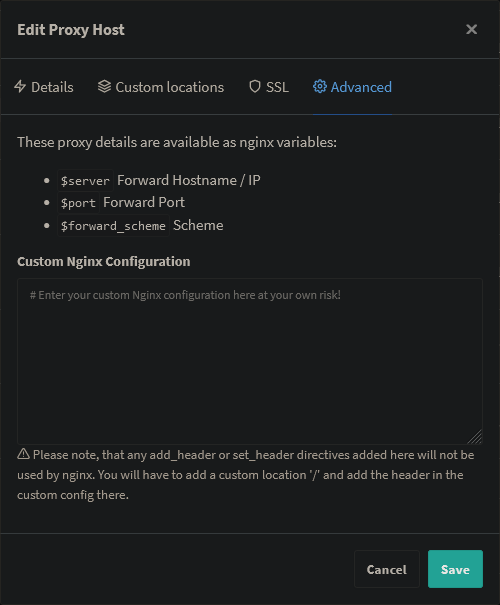
|
||||
|
||||
Of course you need to modify `<your-nc-domain>` to the domain on which you want to run Nextcloud. Also change `<you>@<your-mail-provider-domain>` to a mail address of yours. **Please note:** The above configuration will only work if your reverse proxy is running directly on the host that is running the docker daemon. If the reverse proxy is running in a docker container, you can use the `--network host` option (or `network_mode: host` for docker-compose) when starting the reverse proxy container in order to connect the reverse proxy container to the host network. If that is not an option for you, you can alternatively instead of `localhost` use the ip-address that is displayed after running the following command on the host OS: `ip a | grep "scope global" | head -1 | awk '{print $2}' | sed 's|/.*||'` (the command only works on Linux)
|
||||
Of course you need to modify `<your-nc-domain>` to the domain on which you want to run Nextcloud. Also change `<you>@<your-mail-provider-domain>` to a mail address of yours. Also make sure to adjust the port 11000 to match the chosen APACHE_PORT. **Please note:** The above configuration will only work if your reverse proxy is running directly on the host that is running the docker daemon. If the reverse proxy is running in a docker container, you can use the `--network host` option (or `network_mode: host` for docker-compose) when starting the reverse proxy container in order to connect the reverse proxy container to the host network. If that is not an option for you, you can alternatively instead of `localhost` use the ip-address that is displayed after running the following command on the host OS: `ip a | grep "scope global" | head -1 | awk '{print $2}' | sed 's|/.*||'` (the command only works on Linux)
|
||||
|
||||
</details>
|
||||
|
||||
@@ -217,7 +218,7 @@ Of course you need to modify `<your-nc-domain>` to the domain on which you want
|
||||
|
||||
---
|
||||
|
||||
Of course you need to modify `<your-nc-domain>` in the nextcloud.toml to the domain on which you want to run Nextcloud. **Please note:** The above configuration will only work if your reverse proxy is running directly on the host that is running the docker daemon. If the reverse proxy is running in a docker container, you can use the `--network host` option (or `network_mode: host` for docker-compose) when starting the reverse proxy container in order to connect the reverse proxy container to the host network. If that is not an option for you, you can alternatively instead of `localhost` use the ip-address that is displayed after running the following command on the host OS: `ip a | grep "scope global" | head -1 | awk '{print $2}' | sed 's|/.*||'` (the command only works on Linux)
|
||||
Of course you need to modify `<your-nc-domain>` in the nextcloud.toml to the domain on which you want to run Nextcloud. Also make sure to adjust the port 11000 to match the chosen APACHE_PORT. **Please note:** The above configuration will only work if your reverse proxy is running directly on the host that is running the docker daemon. If the reverse proxy is running in a docker container, you can use the `--network host` option (or `network_mode: host` for docker-compose) when starting the reverse proxy container in order to connect the reverse proxy container to the host network. If that is not an option for you, you can alternatively instead of `localhost` use the ip-address that is displayed after running the following command on the host OS: `ip a | grep "scope global" | head -1 | awk '{print $2}' | sed 's|/.*||'` (the command only works on Linux)
|
||||
|
||||
</details>
|
||||
|
||||
@@ -249,6 +250,8 @@ sudo docker run -it \
|
||||
nextcloud/all-in-one:latest
|
||||
```
|
||||
|
||||
You should also think about limiting the apache container to listen only on localhost in case the reverse proxy is running on the same host by providing an additional environmental variable to this docker run command. See [point 3](#3-if-the-reverse-proxy-is-installed-on-the-same-host-you-should-configure-the-apache-container-to-only-listen-on-localhost).
|
||||
|
||||
<details>
|
||||
|
||||
<summary>Command for arm64 CPUs like the Raspberry Pi 4</summary>
|
||||
@@ -295,7 +298,11 @@ Simply translate the docker run command into a docker-compose file. You can have
|
||||
### How to continue?
|
||||
After using the above command, you should be able to access the AIO Interface via `https://ip.address.of.the.host:8080`. Enter your domain that you've entered in the reverse proxy config and you should be done. Please do not forget to open port `3478/TCP` and `3478/UDP` in your firewall/router for the Talk container!
|
||||
|
||||
## 3. Optional: get a valid certificate for the AIO interface
|
||||
## 3. If the reverse proxy is installed on the same host, you should configure the apache container to only listen on localhost.
|
||||
|
||||
Use this envorinmental variable during the initial startup of the mastercontainer to make the apache container only listen on localhost: `-e APACHE_IP_BINDING=127.0.0.1`
|
||||
|
||||
## 4. Optional: get a valid certificate for the AIO interface
|
||||
|
||||
If you want to also access your AIO interface publicly with a valid certificate, you can add e.g. the following config to your Caddyfile:
|
||||
|
||||
@@ -309,14 +316,15 @@ https://<your-nc-domain>:8443 {
|
||||
}
|
||||
```
|
||||
|
||||
Of course you need to modify `<your-nc-domain>` in the nextcloud.toml to the domain on which you want to run Nextcloud. **Please note:** The above configuration will only work if your reverse proxy is running directly on the host that is running the docker daemon. If the reverse proxy is running in a docker container, you can use the `--network host` when starting the reverse proxy container in order to connect the reverse proxy container to the host network. If that is not an option for you, you can alternatively instead of `localhost` use the ip-address that is displayed after running the following command on the host OS: `ip a | grep "scope global" | head -1 | awk '{print $2}' | sed 's|/.*||'` (the command only works on Linux)
|
||||
Of course you need to modify `<your-nc-domain>` to the domain on which you want to run Nextcloud. **Please note:** The above configuration will only work if your reverse proxy is running directly on the host that is running the docker daemon. If the reverse proxy is running in a docker container, you can use the `--network host` when starting the reverse proxy container in order to connect the reverse proxy container to the host network. If that is not an option for you, you can alternatively instead of `localhost` use the ip-address that is displayed after running the following command on the host OS: `ip a | grep "scope global" | head -1 | awk '{print $2}' | sed 's|/.*||'` (the command only works on Linux)
|
||||
|
||||
Afterwards should the AIO interface be accessible via `https://ip.address.of.the.host:8443`. You can alternatively change the domain to a different subdomain by using `https://<your-alternative-domain>:443` instead of `https://<your-nc-domain>:8443` in the Caddyfile and use that to access the AIO interface.
|
||||
|
||||
## 4. How to debug things?
|
||||
## 5. How to debug things?
|
||||
If something does not work, follow the steps below:
|
||||
1. Make sure to exactly follow the whole reverse proxy documentation step-for-step from top to bottom!
|
||||
1. Make sure that the reverse proxy is running on the host OS or if running in a container, connected to the host network. If that is not possible, substitute `localhost` in the default configurations by the ip-address that you can easily get when running the following command on the host OS: `ip a | grep "scope global" | head -1 | awk '{print $2}' | sed 's|/.*||'` (The command only works on Linux)
|
||||
1. Make sure that all ports match the chosen APACHE_PORT.
|
||||
1. Make sure that the mastercontainer is able to spawn other containers. You can do so by checking that the mastercontainer indeed has access to the Docker socket which might not be positioned in one of the suggested directories like `/var/run/docker.sock` but in a different directory, based on your OS and the way how you installed Docker. The mastercontainer logs should help figuring this out. You can have a look at them by running `sudo docker logs nextcloud-aio-mastercontainer` after the container is started the first time.
|
||||
1. Check if after the mastercontainer was started, the reverse proxy if running inside a container, can reach the provided apache port. You can test this by running `nc -z localhost 11000; echo $?` from inside the reverse proxy container. If the output is `0`, everything works. Alternatively you can of course use instead of `localhost` the ip-address of the host here for the test.
|
||||
1. Try to configure everything from scratch if it still does not work!
|
||||
|
||||
@@ -1,6 +1,7 @@
|
||||
# Environmental variables
|
||||
|
||||
- [ ] When starting the mastercontainer with `-e APACHE_PORT=11000` on a clean instance, the domaincheck container should be started with that same port published. That makes sure that also the Apache container will use that port later on. Using a value here that is not a port will not allow the mastercontainer to start correctly.
|
||||
- [ ] When starting the mastercontainer with `-e APACHE_IP_BINDING=127.0.0.1` on a clean instance, the domaincheck container's apache port should only listen on localhost on the host. Using a value here that is not a number or dot will not allow the mastercontainer to start correctly.
|
||||
- [ ] When starting the mastercontainer with `-e TALK_PORT=3479` on a clean instance, the talk container should use this port later on. Using a value here that is not a port will not allow the mastercontainer to start correctly. Also it should stop if apache_port and talk_port are set to the same value.
|
||||
- [ ] Make also sure that reverse proxies work by following https://github.com/nextcloud/all-in-one/blob/main/reverse-proxy.md#reverse-proxy-documentation and following [001-initial-setup.md](./001-initial-setup.md) and [002-new-instance.md](./002-new-instance.md)
|
||||
- [ ] When starting the mastercontainer with `-e SKIP_DOMAIN_VALIDATION=true` on a clean instance, it should skip the domain verification. So it should accept any domain that you type in then.
|
||||
|
||||
@@ -6,3 +6,5 @@
|
||||
- [ ] `Europe/Berlin` should be accepted, e.g. `Europe Berlin` not
|
||||
- [ ] When it is set, it should show that it is set to which timezone and display a button that allows to reset it again which does this on a press
|
||||
- [ ] When it is set, running `date` inside Nextcloud releated containers should return the correct timezone
|
||||
|
||||
You can now continue with [080-daily-backup-script.md](./080-daily-backup-script.md)
|
||||
5
tests/QA/080-daily-backup-script.md
Normal file
5
tests/QA/080-daily-backup-script.md
Normal file
@@ -0,0 +1,5 @@
|
||||
# Daily backup script
|
||||
|
||||
The script is delivered within the mastercontainer and allows to run a few things like daily backup and container updates from an external script.
|
||||
|
||||
You can find the documentation on this here which needs to work as documented: https://github.com/nextcloud/all-in-one#how-to-stopstartupdate-containers-or-trigger-the-daily-backup-from-a-script-externally
|
||||
Reference in New Issue
Block a user